
Adding a new Gallery page
Edited
With Springnest, you're able to have multiple Gallery pages. If you repeat the below process, you will essentially create sub-categories within your Gallery.
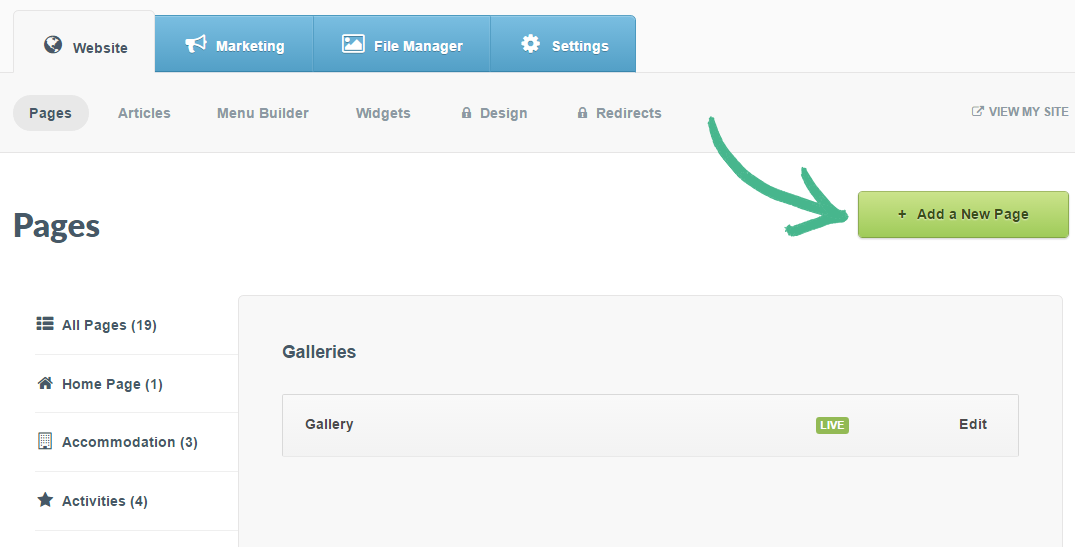
Step 1: Under the Website tab select Pages > Click the Add a New Page button
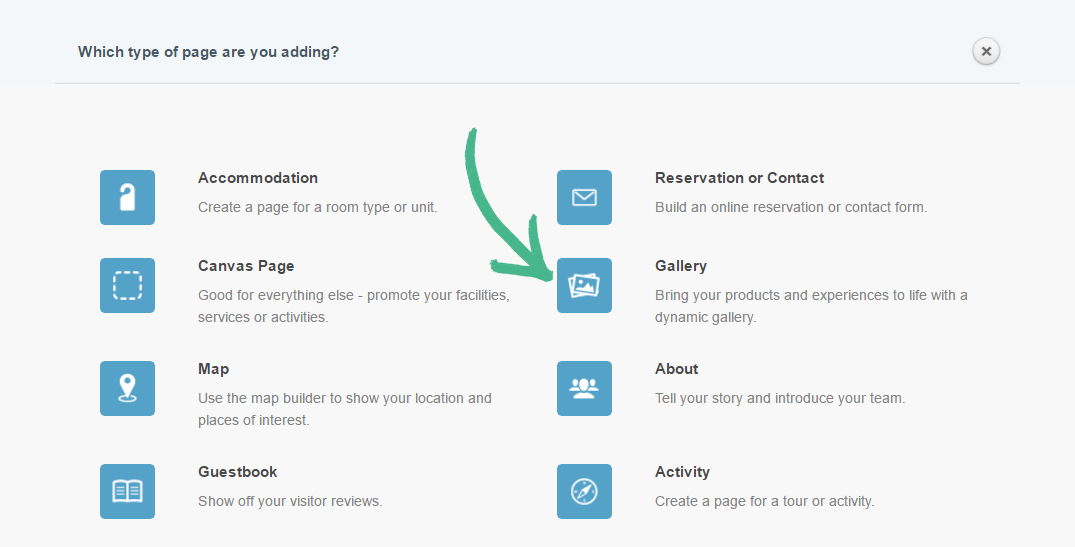
Step 2: In the Which type of page are you adding? pop up menu > Select the Gallery icon
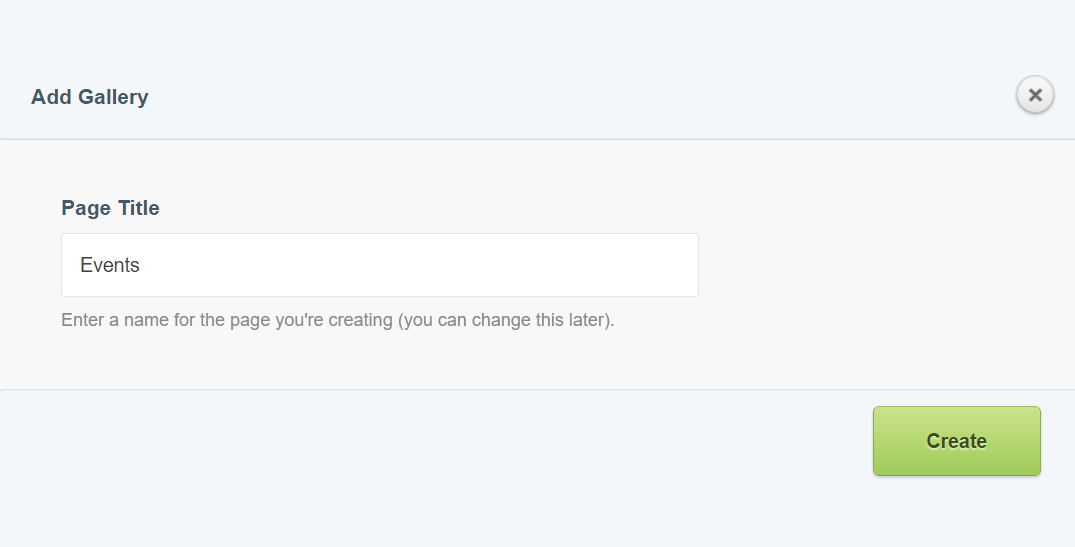
Step 3: In the Add Gallery pop up > Add a Page Title > Click Create
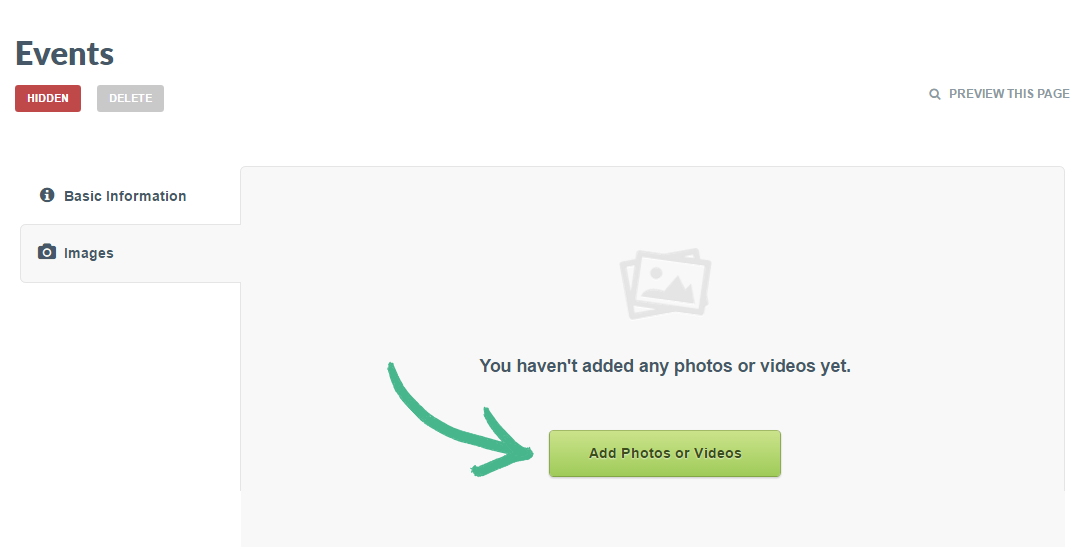
Step 4: Select Images in the sidebar menu > Click the Add Photos and Videos button > Select all the relevant images you would like to add to the Gallery
Step 5: Click Save once your upload is complete
Helpful Hint
Was this article helpful?
Sorry about that! Care to tell us more?