
Setting your page as Hidden or Live
You can set a page as Live (visible for the public to see on your website), or as Hidden (not visible to the public). If a page is hidden, you are still able to edit the page.
To recap the video, here's a step-by-step guide:
Step 1: Select the Website tab > Click Pages > Click Gallery in the left-hand menu
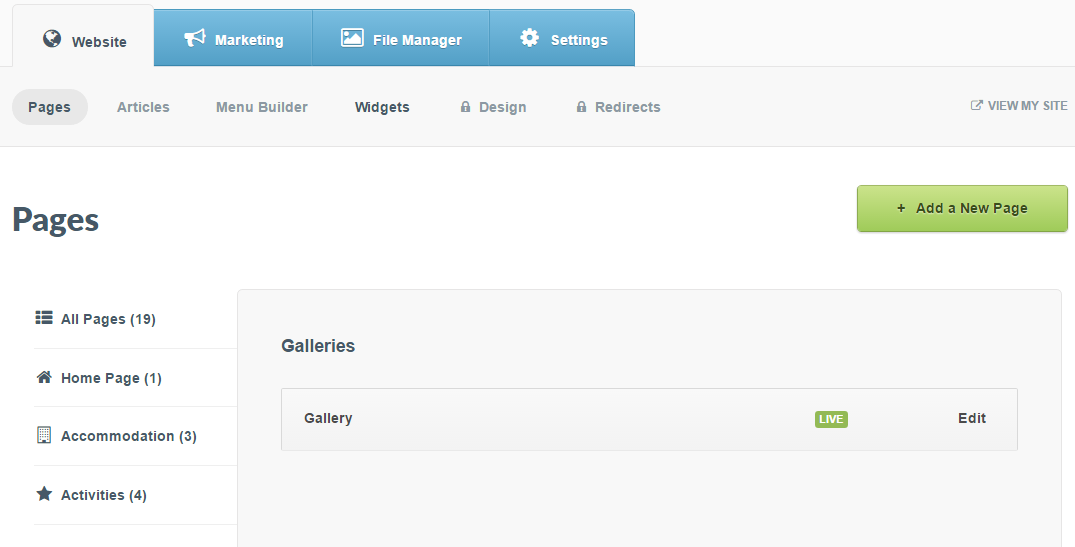
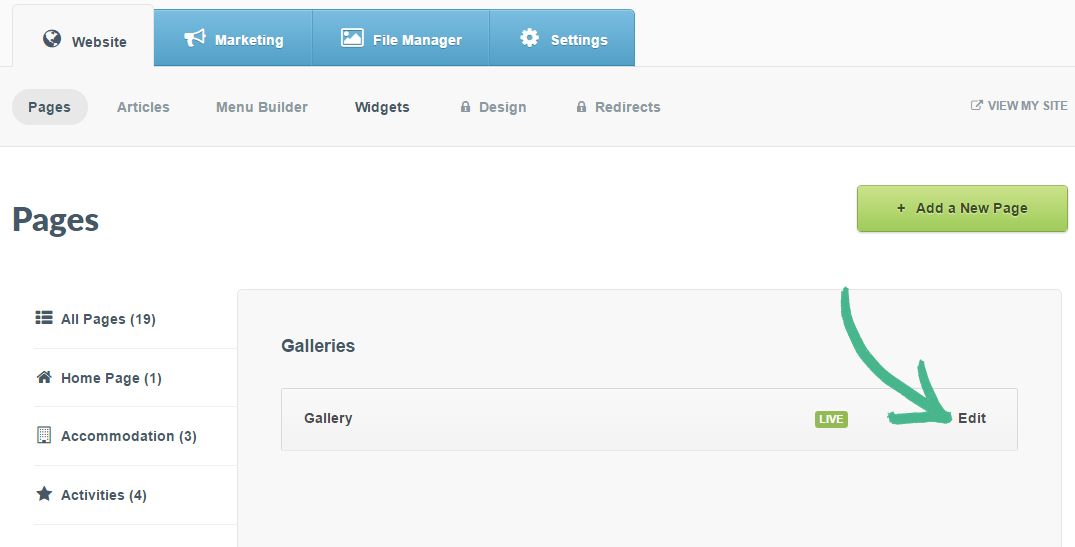
Step 2: Click Edit to access the main Gallery page
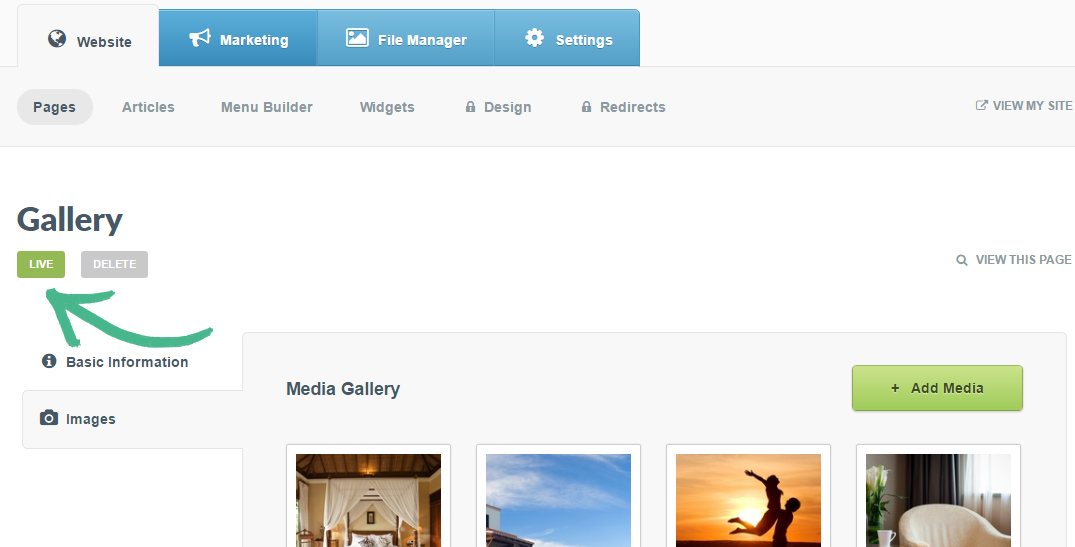
Step 3: Below the Gallery title, there's a green button entitled Live > This indicates that the page is visible on your website
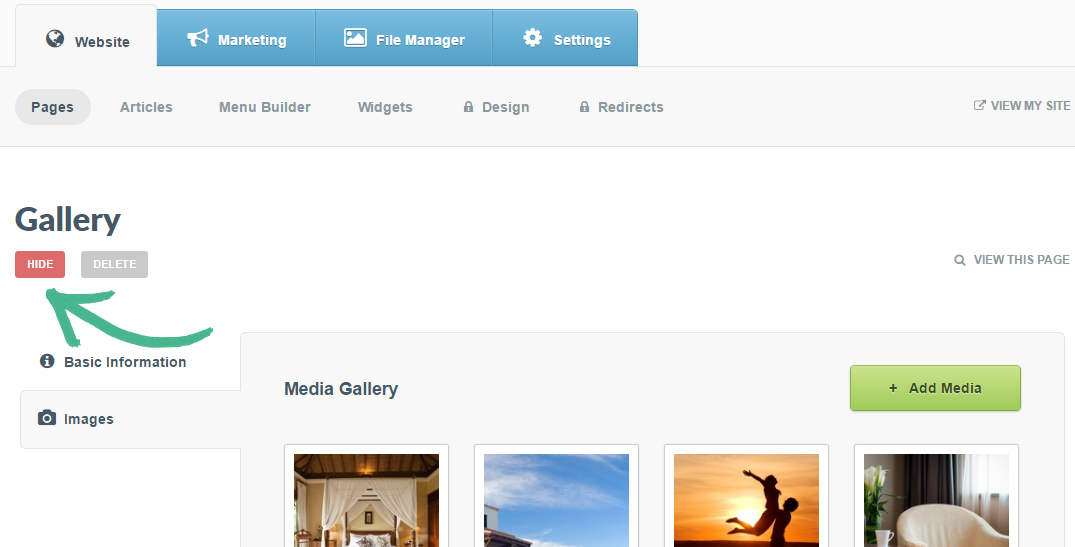
Step 4: To Hide the page, hover over the green Live button > It will change from green to red > Click the button once it has changed to red, and now states Hide
Helpful Hints:
The process of changing a page from Hidden to Live (and vice-versa) is the same throughout Springnest.
New pages, blog articles, and special offers you create will be Hidden by default until you are ready to take them live. Your Homepage will always be Live.