
Adding a Klaviyo Sign-up Form to your website (The Klaviyo Widget)
The Klaviyo widget makes it easy to add a mailing list subscription form to your Springnest website. If you use multiple lists or audiences from your Klaviyo Account, you'll need to choose which list you would like website subscribers to be added to. The sign-up form appears horizontally in your footer area, and will automatically match the colour palette and font combination of your site. Choose for a series of Calls to action best suited to your email marketing strategy and brand.
Step 1
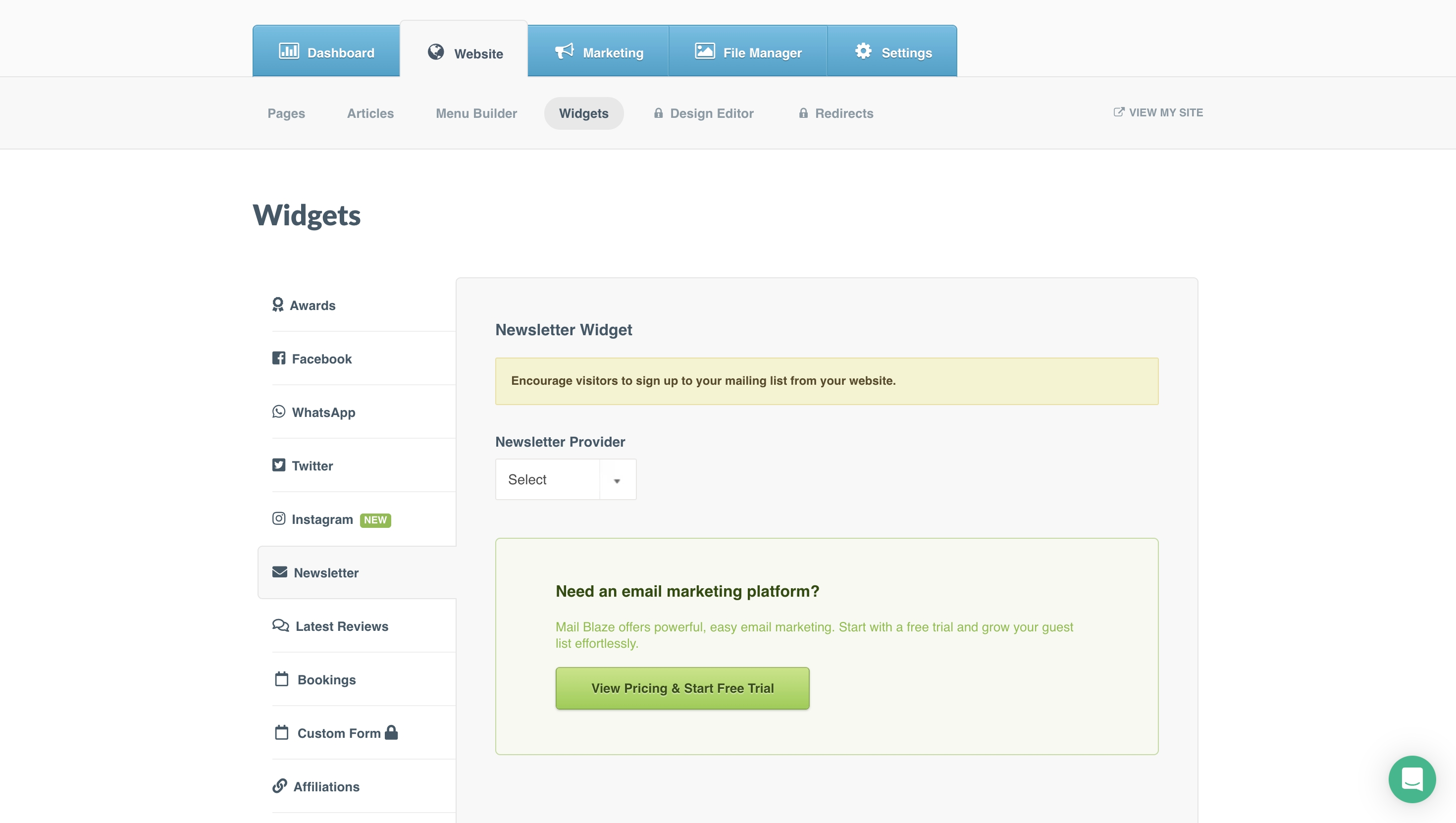
Select the Website tab > Click Widgets > Select Klaviyo from the drop-down menu
Step 2
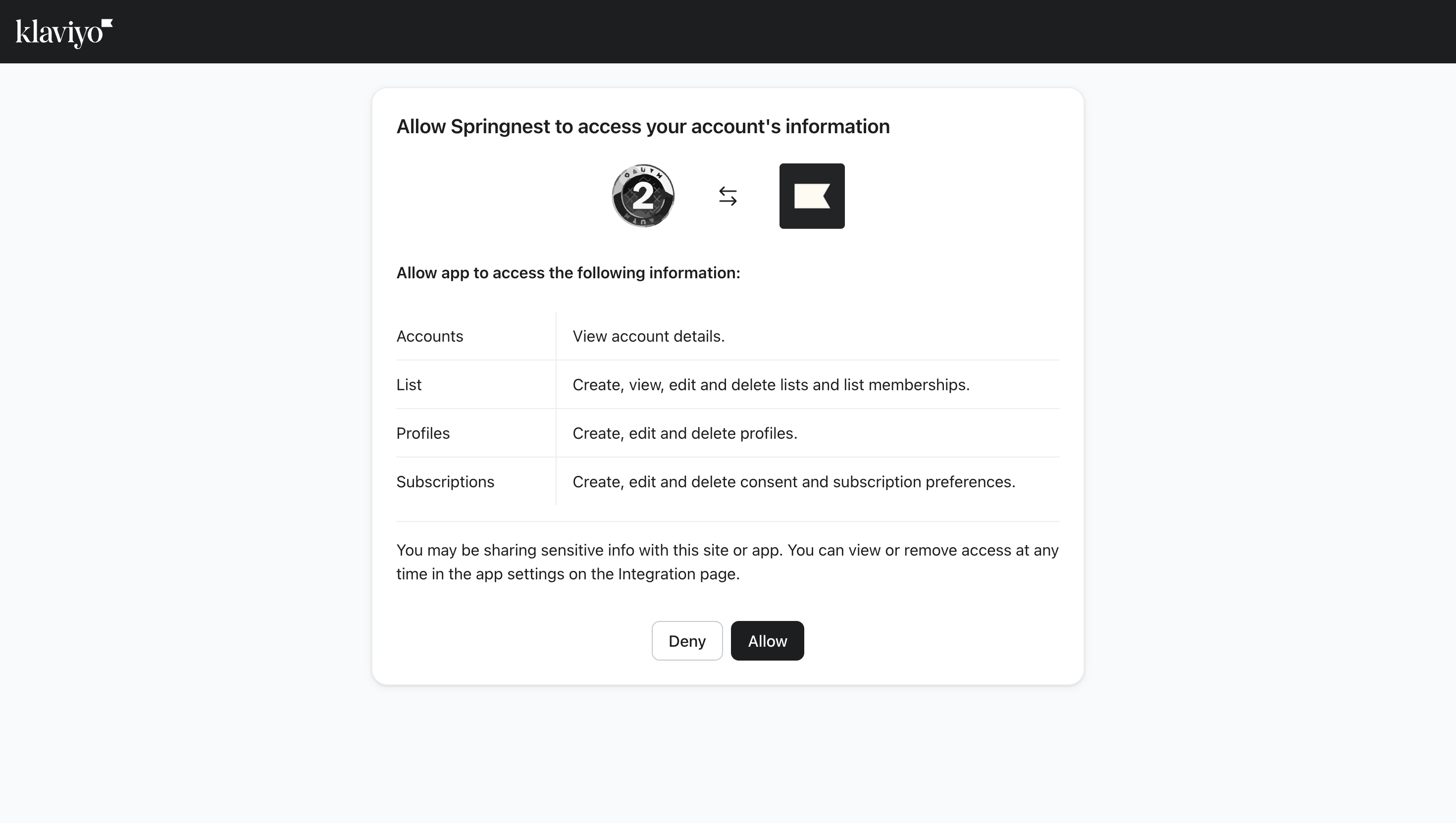
A new page will open, prompting you to sign in to Klaviyo using your business username and password. Enter your details and click Log In. You will be prompted to allow the c onnection between Springnest and your Klaviyo Account. Click Allow.
PS. if you lost your Klaviyo login details, you can reset them here.
Step 3
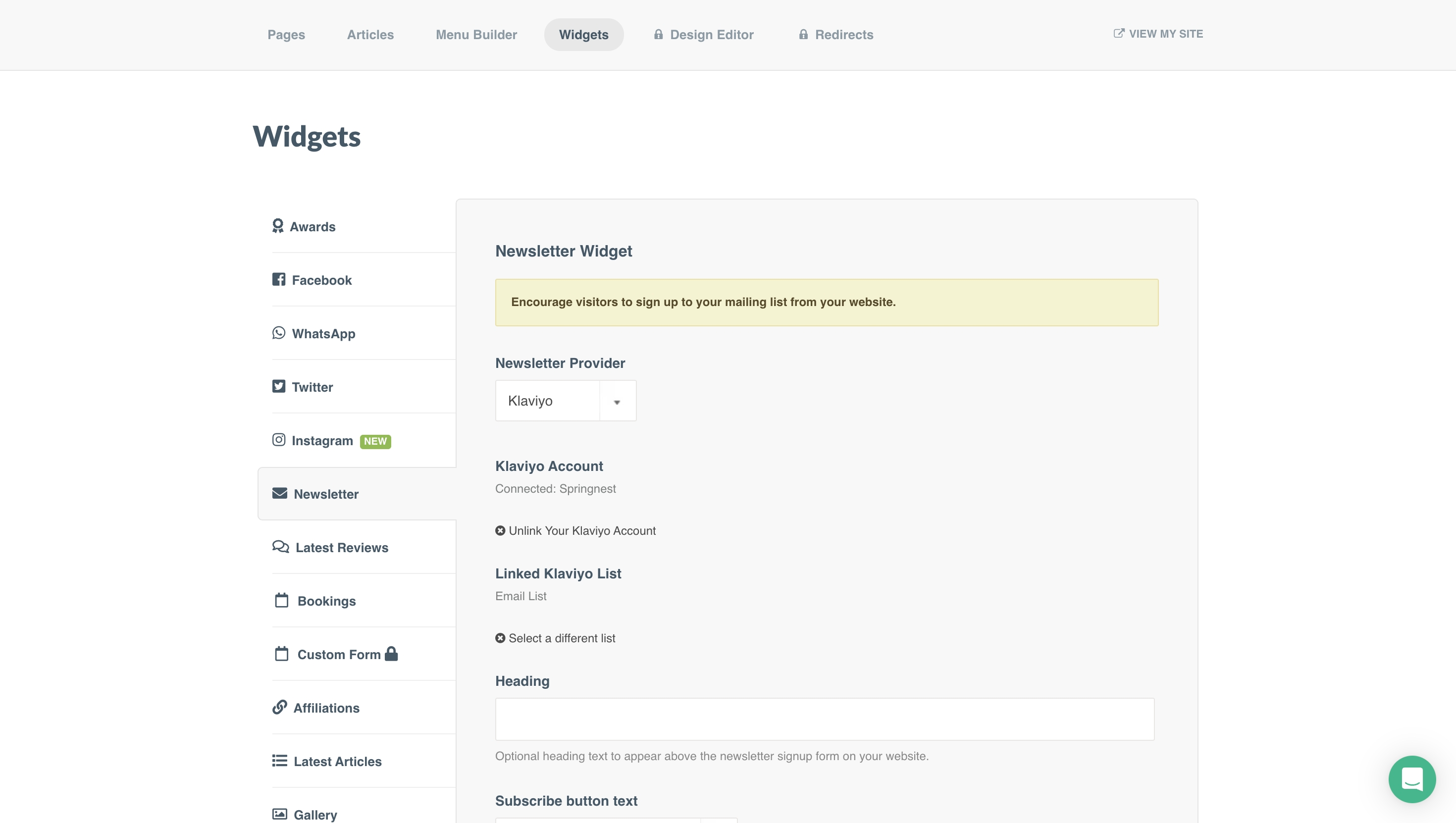
You will be redirected to Springnest Admin, where your Klaviyo Account will be successfully linked. If you have multiple lists in Klaviyo, select which audience you would like your website subscribers to be added to. If you do not have multiple audiences, you will see that your default audience is already linked; no action needed here.
Step 5
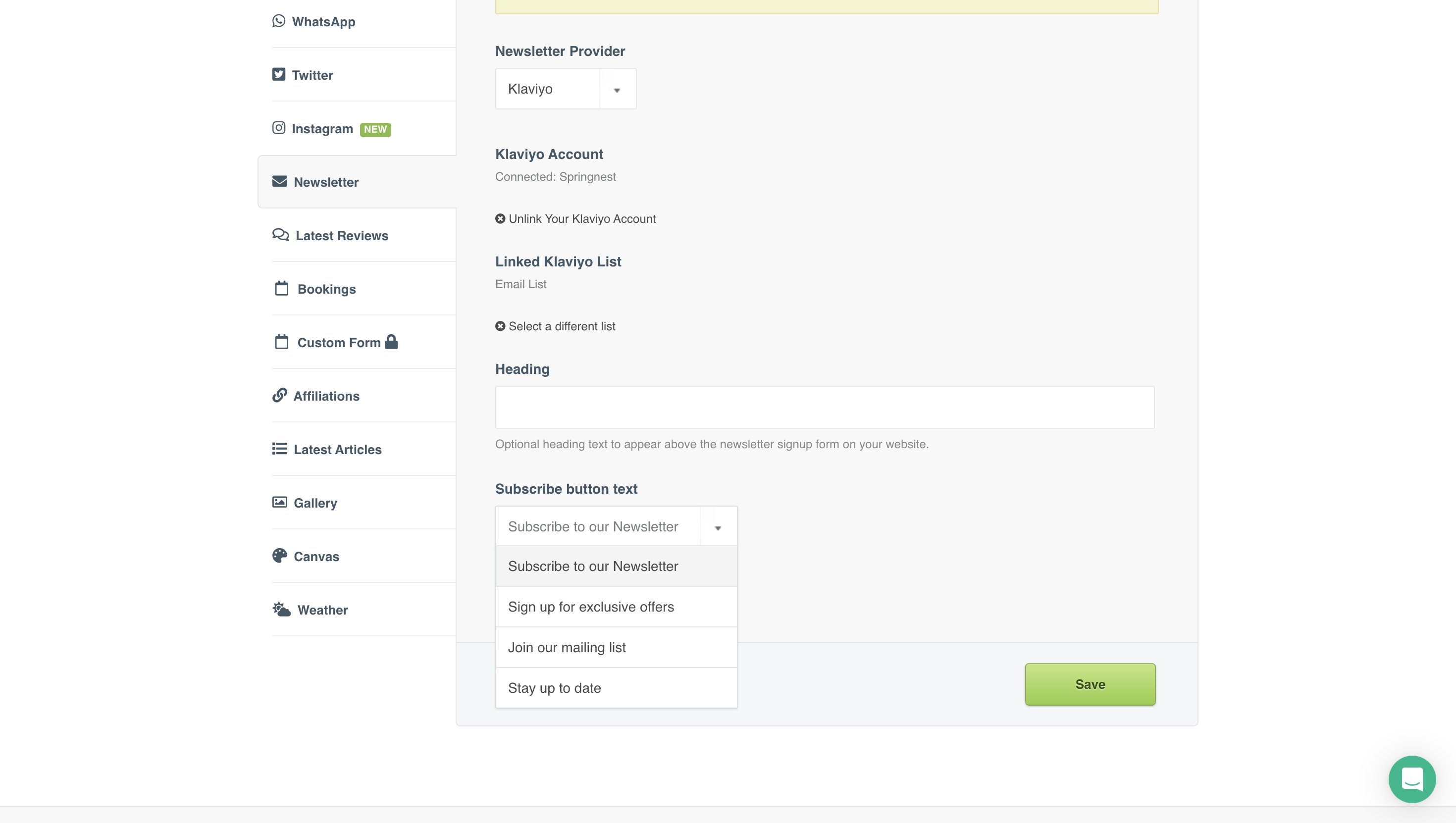
Select the Call to Action (Button Text) you prefer to appear alongside your sign-up form.
Your widget is now active
Once you select your audience or change your Call to action, your settings will automatically save, and the page will refresh. You will now see your Klaviyo signup form in the footer of your website: