
Adding the Mail Blaze widget to your website
Accessing your API key in Mail Blaze
Step 1: Log in to your Mail Blaze account and navigate to API Keys
Step 2: Copy your Public Key
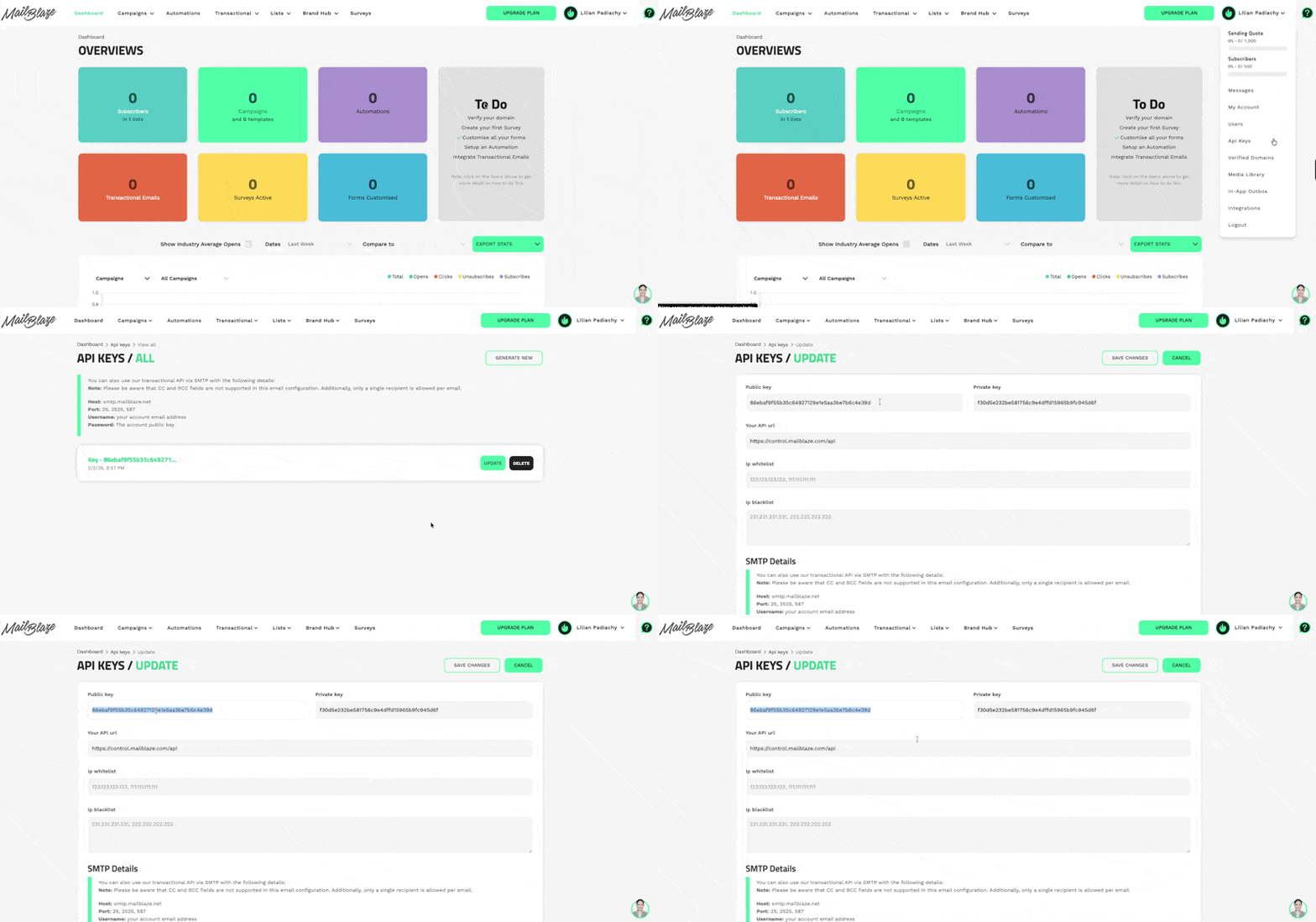
Note: The Public Key is displayed in the API Keys section. You'll need this to connect Mail Blaze to your Springnest website.
Enabling your Newsletter Widget
Step 3: In your Springnest Admin, navigate to the Website tab and click Widgets > Click Newsletter from the left-hand menu
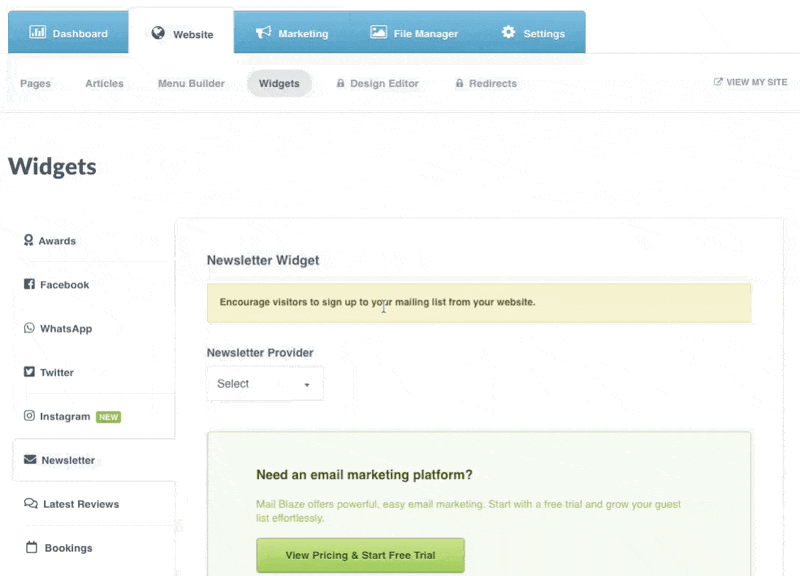
Step 4: Select Mail Blaze from the Newsletter Provider dropdown > Paste your Public Key into the Mail Blaze API Key field
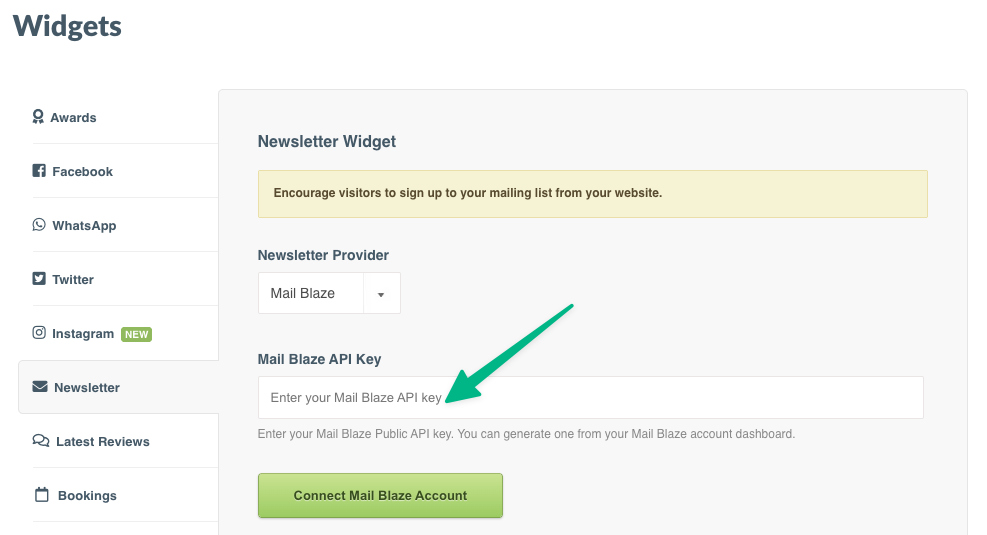
Note: You can generate your API key from your Mail Blaze account dashboard as described in Steps 1-2.
Step 7: Click Connect Mail Blaze Account
Step 8: Select a Mail Blaze list from the dropdown menu
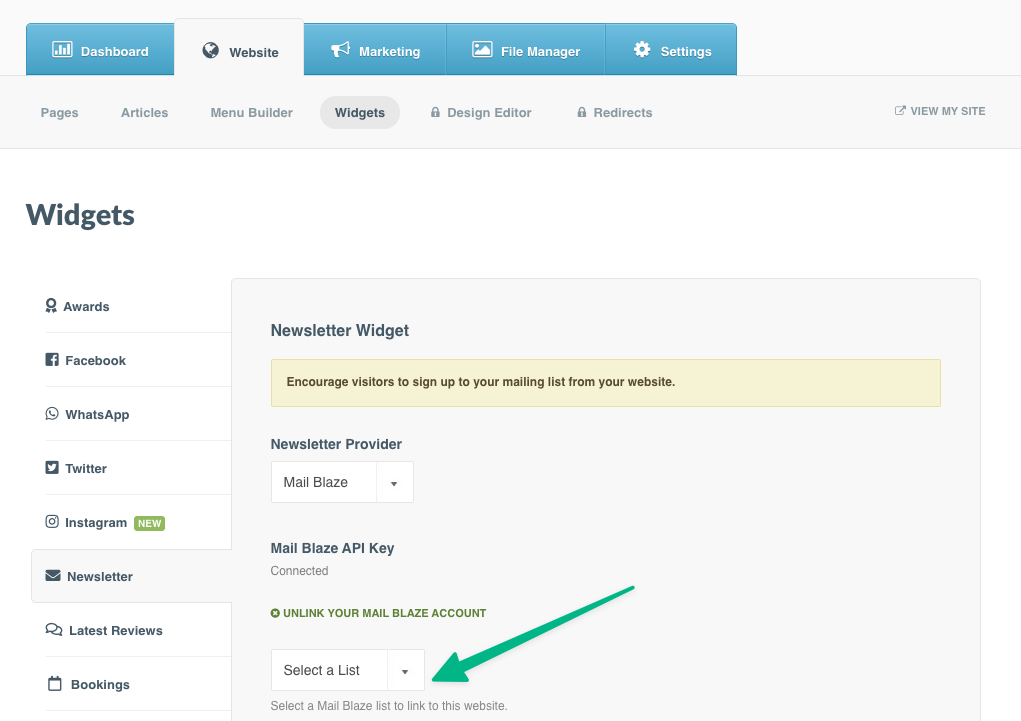
Note: You will need to set up at least one list in Mail Blaze before completing this step. The list you select here is where new subscribers from your website will be added.
Step 9: Optionally, add a Heading for your newsletter widget and customize the Subscribe button text
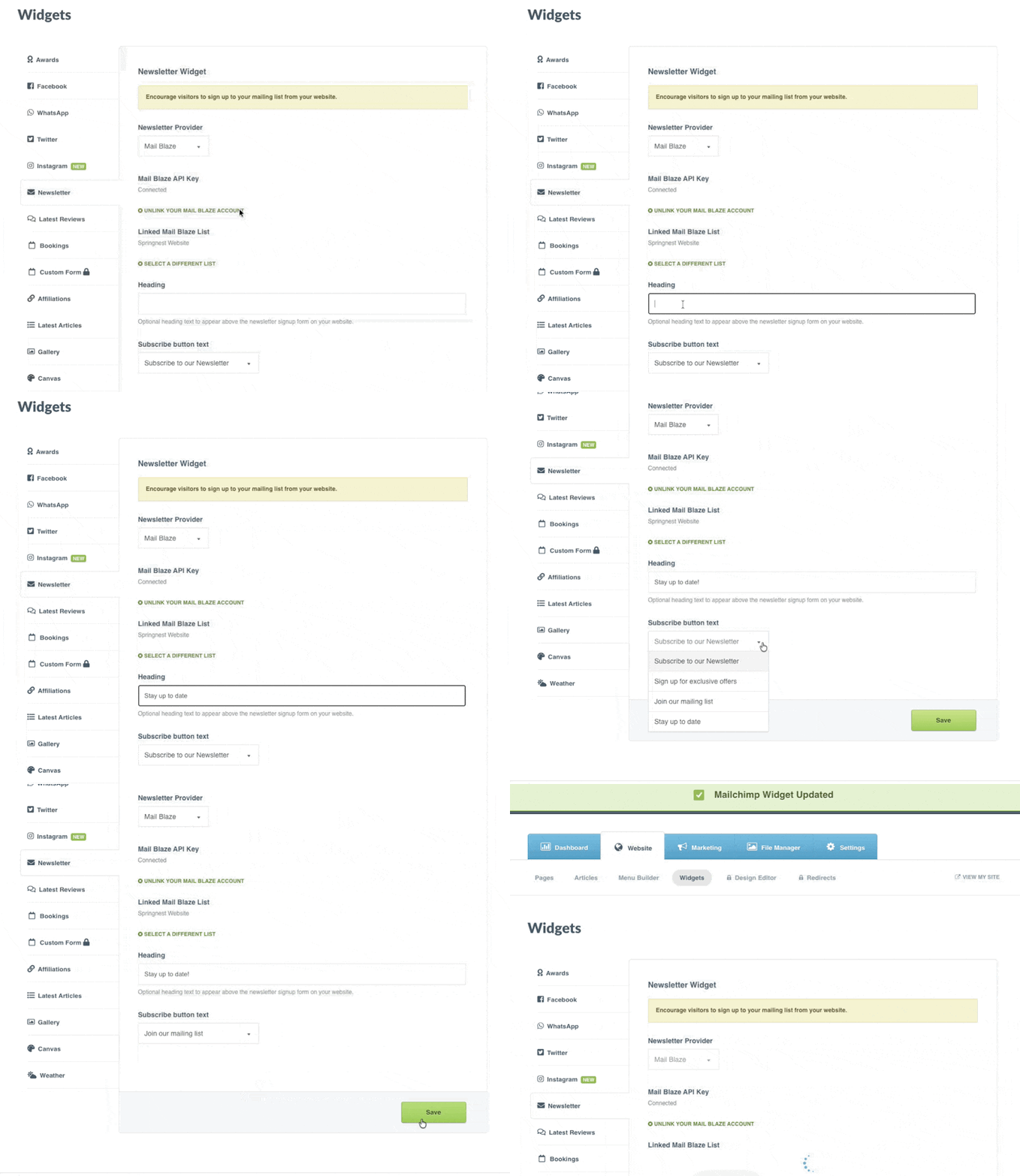
Note: This is the text that will appear above the newsletter signup form on your website, for example, "Be the first to hear about exclusive offers".
Step 11: Click Save
Note: You can choose from preset options like "Subscribe to our Newsletter", "Sign up for exclusive offers", "Join our mailing list", or "Stay up to date".
Adding Newsletter signup to the contact form
Step 12: To add the newsletter signup to your contact form, navigate to Pages from the Website tab
Step 13: Find and click Edit on the contact page where you want to add the newsletter signup option
Step 14: Click Build Your Form from the left-hand menu
Step 15: Scroll to the Additional Information section and check the Contact list checkbox
Note: When checked, visitors can choose to receive news, updates and specials from you in the future. When they check this box, they will automatically be added to your Mail Blaze list.
Step 16: Click Save
Note: The newsletter signup widget will now be active on your website. Visitors who subscribe will be automatically added to your selected Mail Blaze list.>