Collection Pages - Grouping Your Site's Content
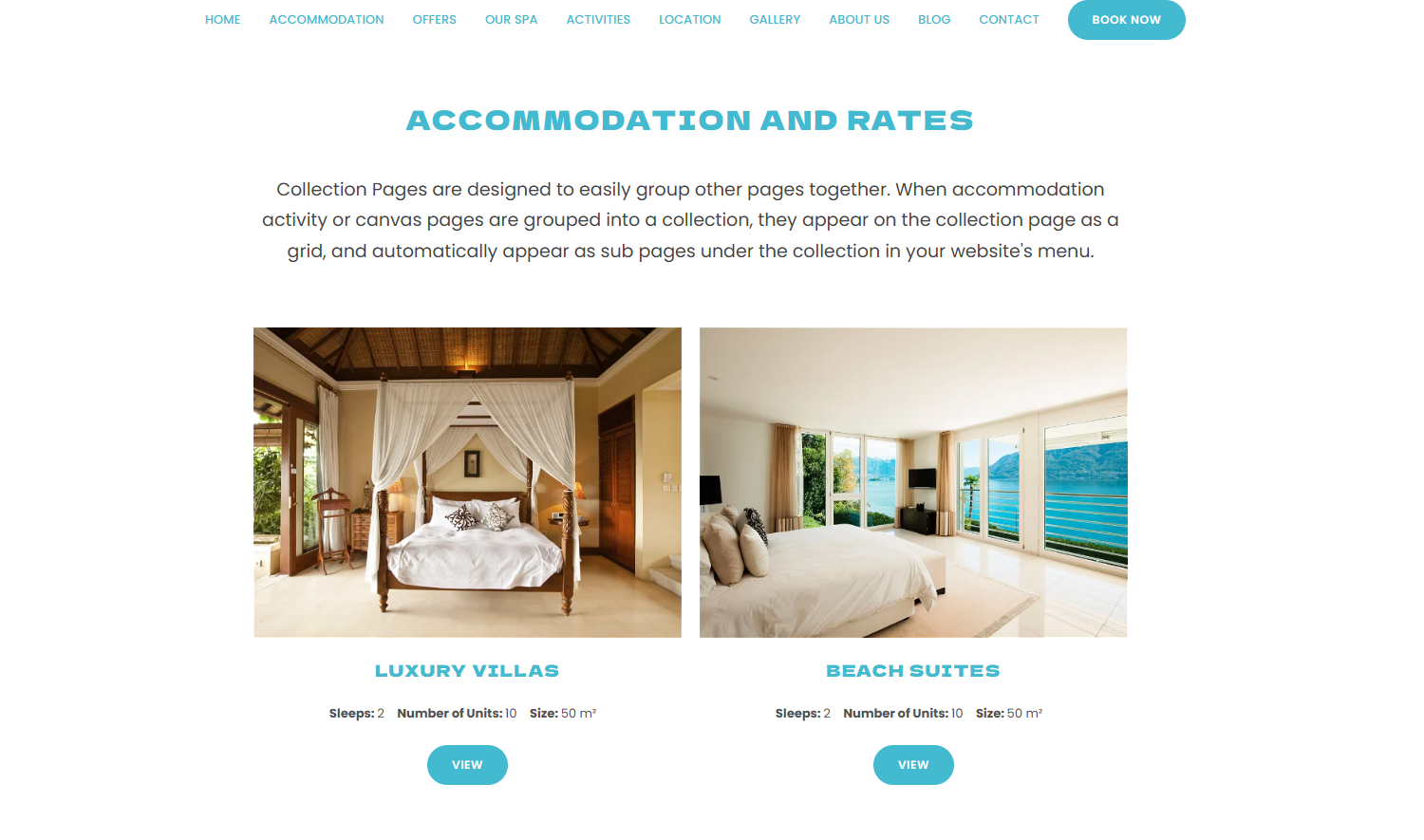
Collection pages make it simple for your visitors to explore your content and find what they are looking for. Use them to group accommodation, activities, canvas pages, or even other collections, into one browsable page.
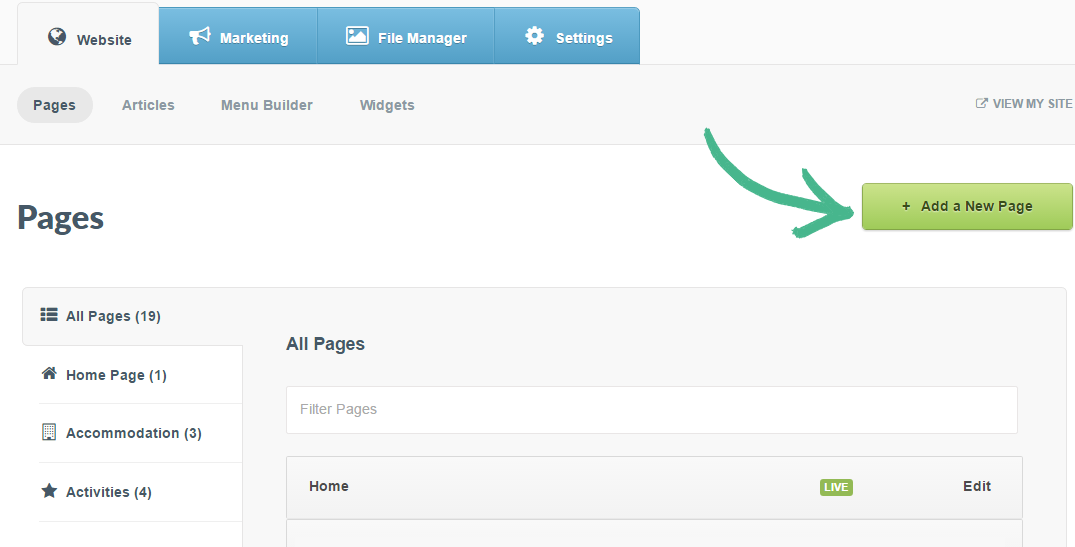
Step 1: Click the Website tab > Select the Pages section > Click the +Add a page button
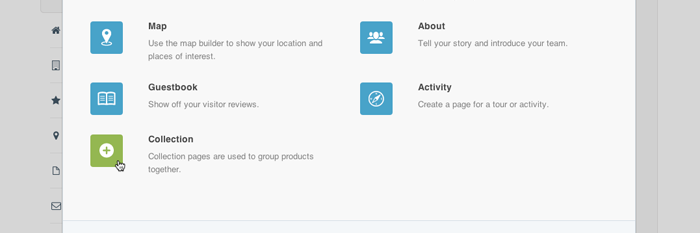
Step 2: Select Collection from the pop-up menu
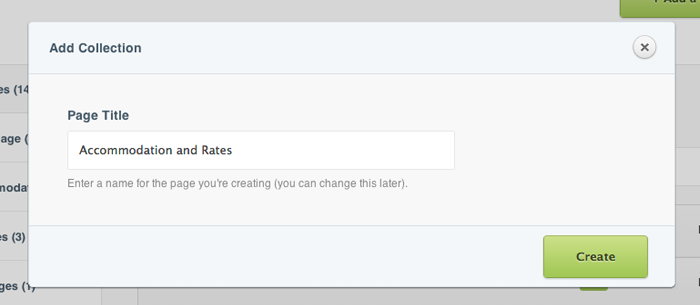
Step 3: Enter a Title for your collection page > Click the Create button
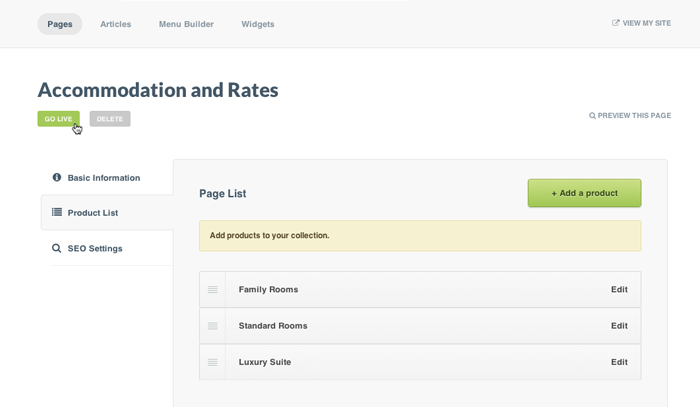
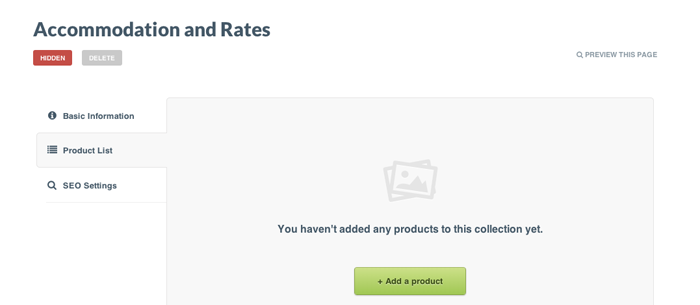
Step 4: Click Product List in the left-hand menu > Click the +Add a product button
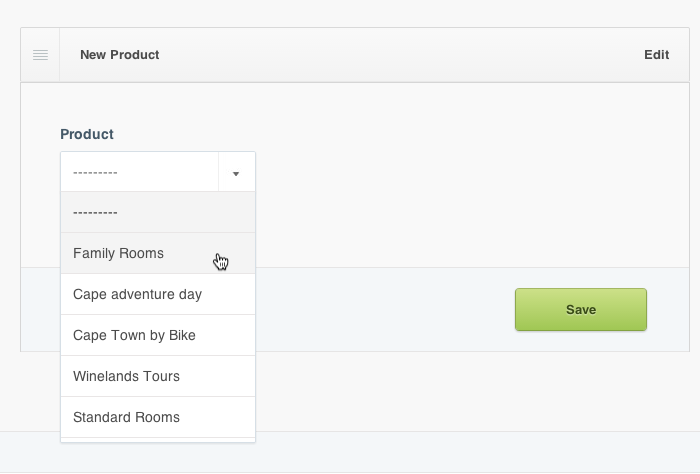
Step 5: A drop-down menu titled Product will appear. It now includes accommodation, activity and canvas pages, as well as other collection pages, so you can nest collections inside one another. Select the page(s) you want to add > Click Save
Step 6: Want a picture representing this collection? Go to the collection's Basic Information tab and add a Featured image (or a Vimeo/YouTube video), next to the description. It shows as the thumbnail wherever the collection is listed, and as the image used when the page is shared on social media.
Step 7: Your new collection page is Hidden by default. Hover over the Hidden button > Click Go Live when you're ready to publish it.
A note on nesting: a collection can't be added inside itself, or inside a collection it's already part of; this stops your navigation menu from looping. If a collection you expect isn't offered in the picker, that's why.