
Content Hotspots on your Home Page
Hotspots are sections of important information and are displayed on the most visible areas of your home page. You can use hotspots to list and showcase important information like special offers, or to highlight your business' unique story.
Creating and editing Content Hotspots on your Home page.
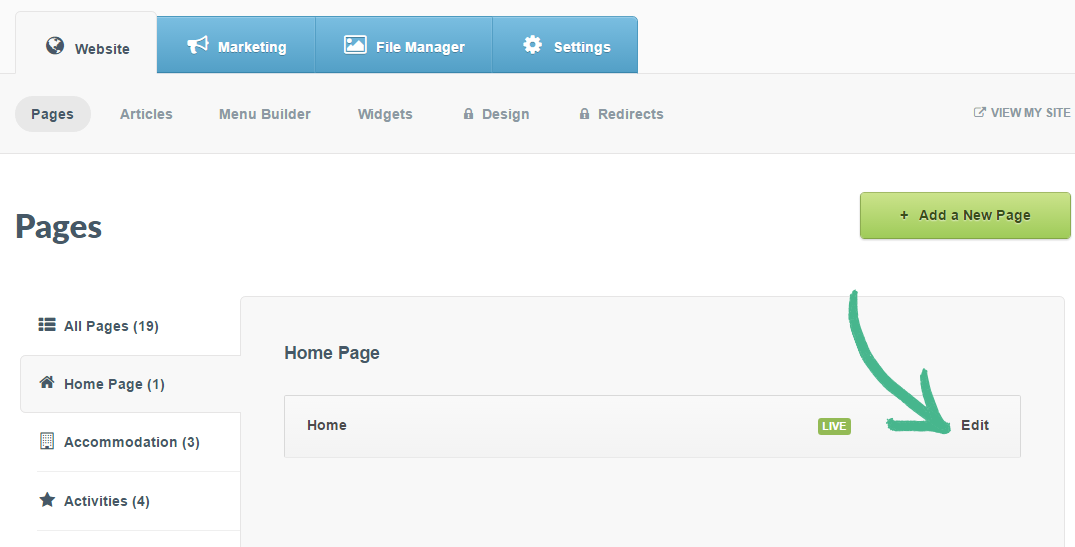
Step 1: Select the Pages tab > Click Home Page in the left-hand menu > Click Edit
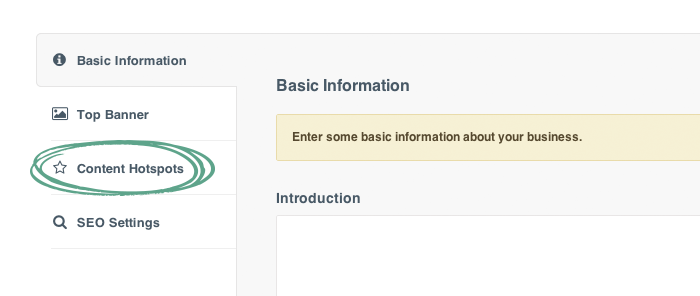
Step 2: Select Content Hotspots > Current Hotspots will appear > Click the Hotspot you wish to edit or click the Add New Content Hotspot button
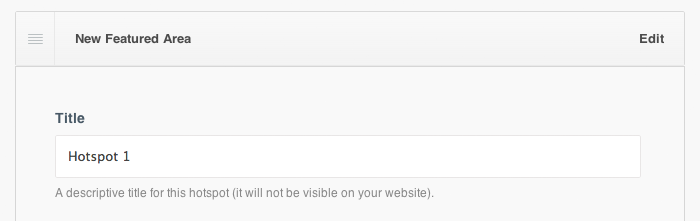
Step 3: Keep the Title relevant to the content you will be adding
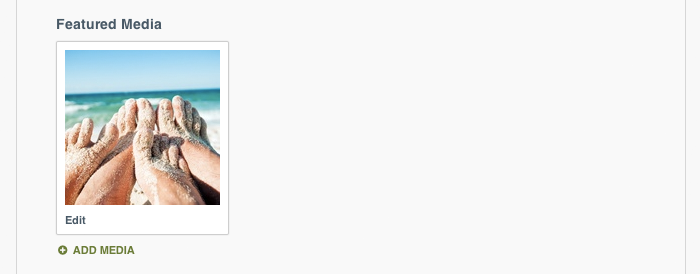
Step 4: Click Add Media or Change Media > Upload an image or video relevant to your Title
Step 5: Add a Heading

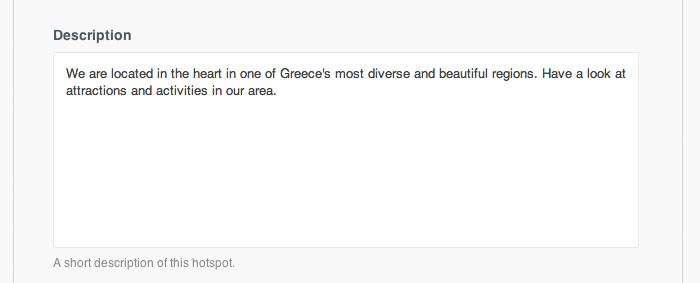
Step 7: Add a Description giving a brief account of what the Hotspot is about (Optional)
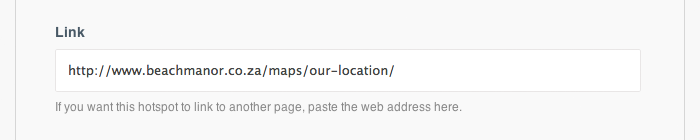
Step 8: Paste the website address you would like the Hotspot to link to, in the Link field
Note: Adding a link allows anyone to click on your Hotspot image and redirects them to the website link you have pasted in the Link field (A page on your website or an external page).
Step 9: Add a button to the slide with the Link text field. The text you add will display on the button
Examples: More Information, Explore our city or Current offers.

Step 10: Check the Open this link in a new tab box if you would like this to occur
Note: Best practice for usability and user experience is to leave this option unchecked.

Step 11: Click Save