Working with PDF documents on your website
PDF documents can be useful for adding indemnity documents and fact-sheets to your website. In this article, we cover uploading a PDF, locating the download link and deleting a PDF.
To recap the video, here's a step-by-step guide:
1. Uploading a PDF document in Springnest:
Step 1: Select the File Manager tab > Click PDF Documents
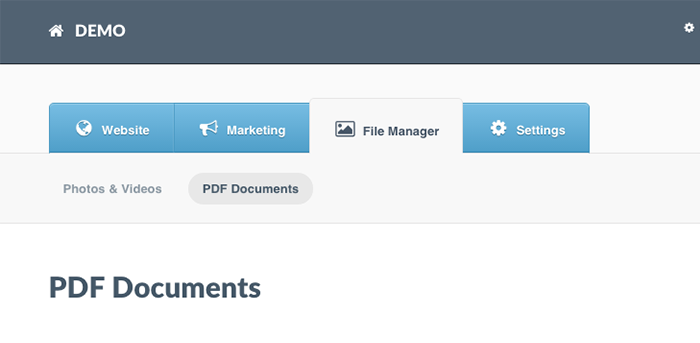
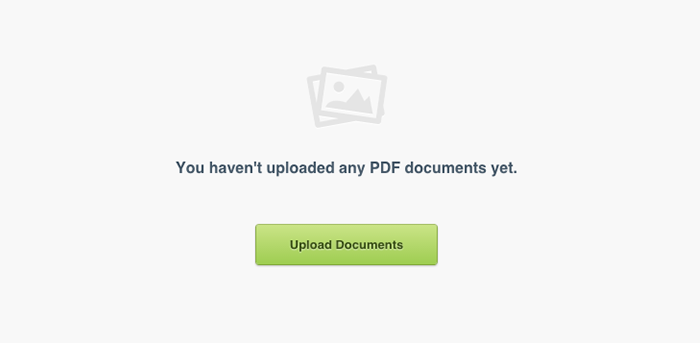
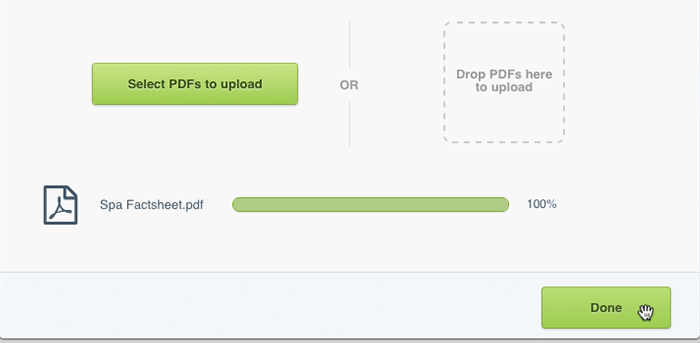
Step 2: Click the Upload Documents button
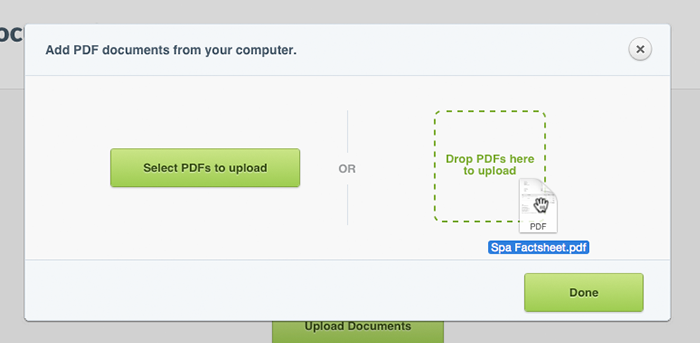
Step 3: Browse for the PDF file on your computer or device or Drag and drop the document into the pop-up to upload > When all your documents have reached 100% > Click Done
2. Finding the download link:
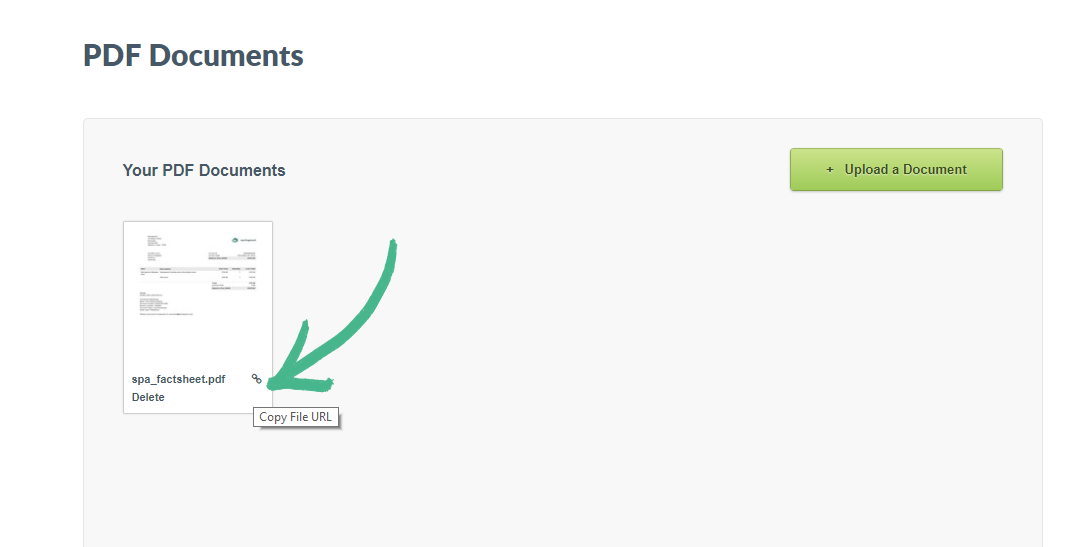
Step 1: To link your document in various areas of your website > Click the icon in the bottom right-hand corner of the thumbnail > Copy the file URL > Paste it into the Link or Link Address field (depending on what area of your website you are adding it to)
3. Adding a Hyperlink
Step 1: Navigate to the page you would like to add the PDF to
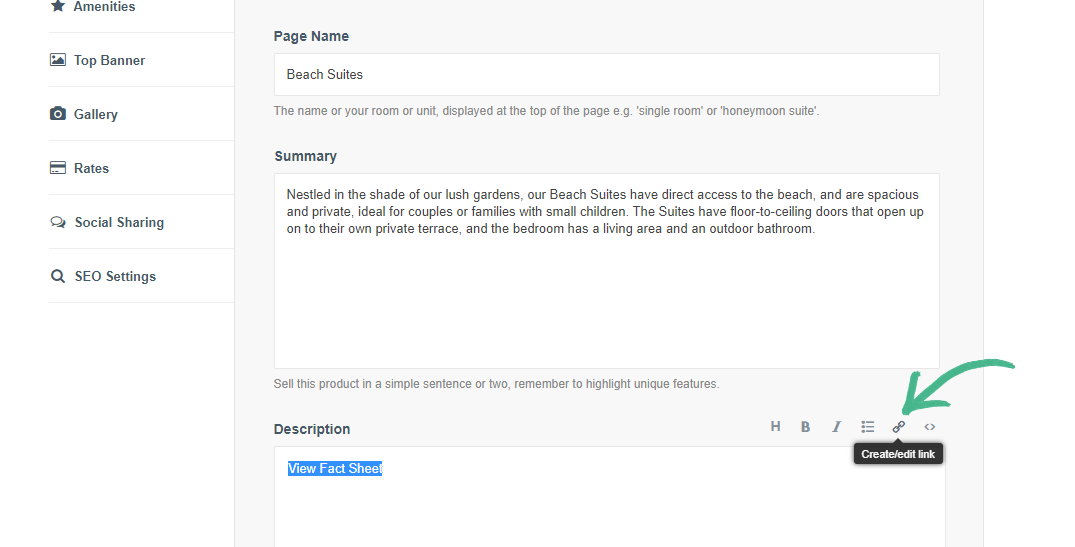
Step 2: In the Content or Description field highlight the text you would like to add a hyperlink to > Click the paper clip icon (top right-hand corner)
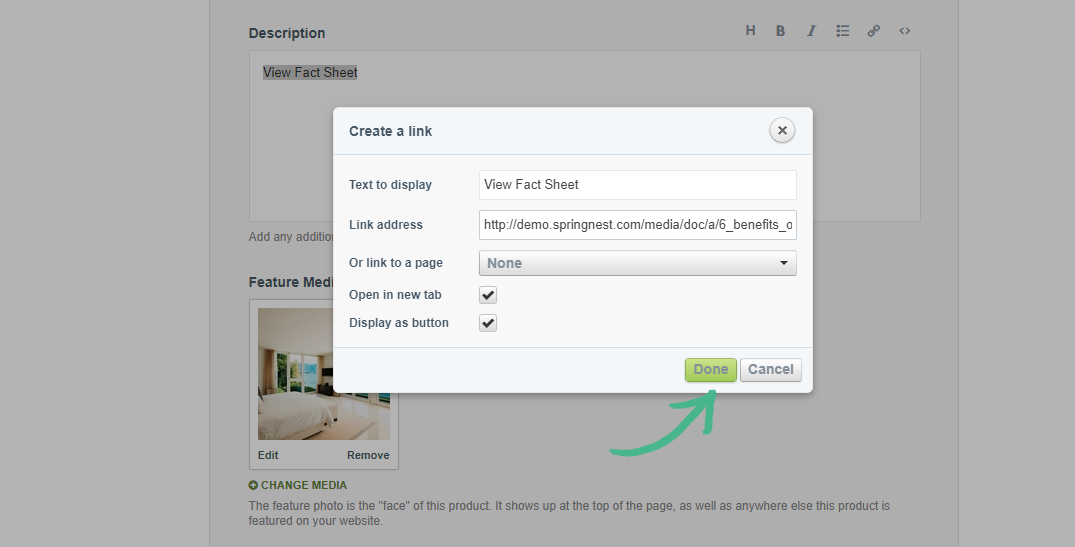
Step 3: Paste the link to the PDF (from in step 1 of finding the download link) into the Link Address field > Click Done in the pop-up box
Step 4: Click Save at the bottom of the page
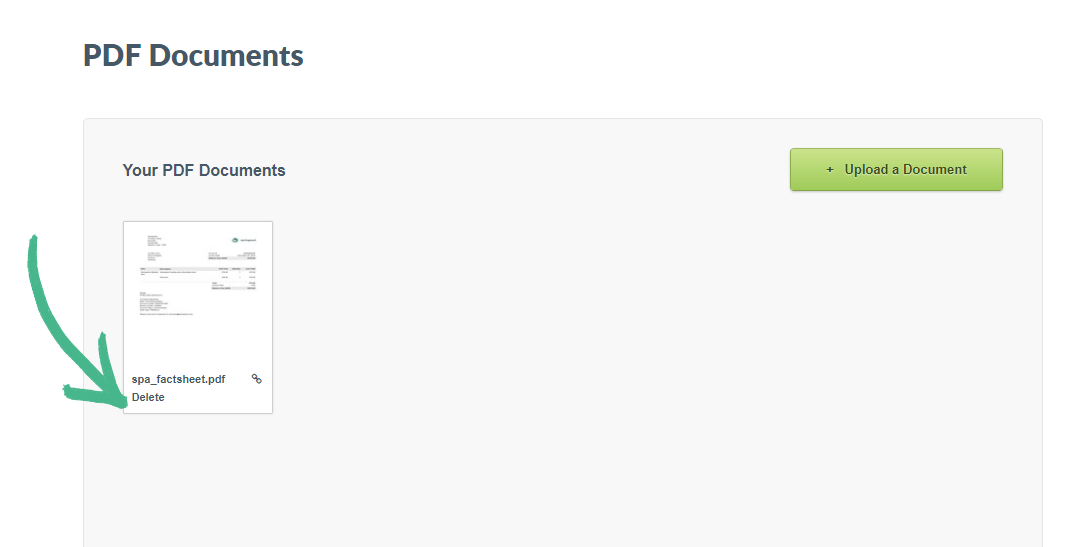
4. Deleting a PDF from your File Manager (PDF documents):
Step 1: Select the File Manager tab > Click PDF Documents > Click Delete