Adding or editing Amenities
To recap the video, here's a step-by-step guide:
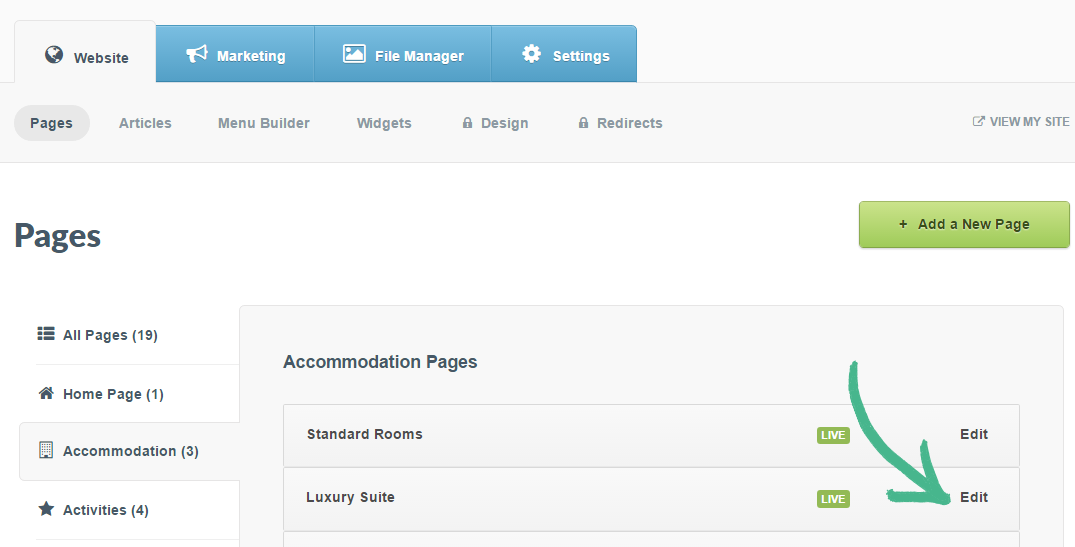
Step 1: Click the Pages button > Select Accommodation in the left-hand menu > Select the Accommodation Page you would like to add Room Amenities
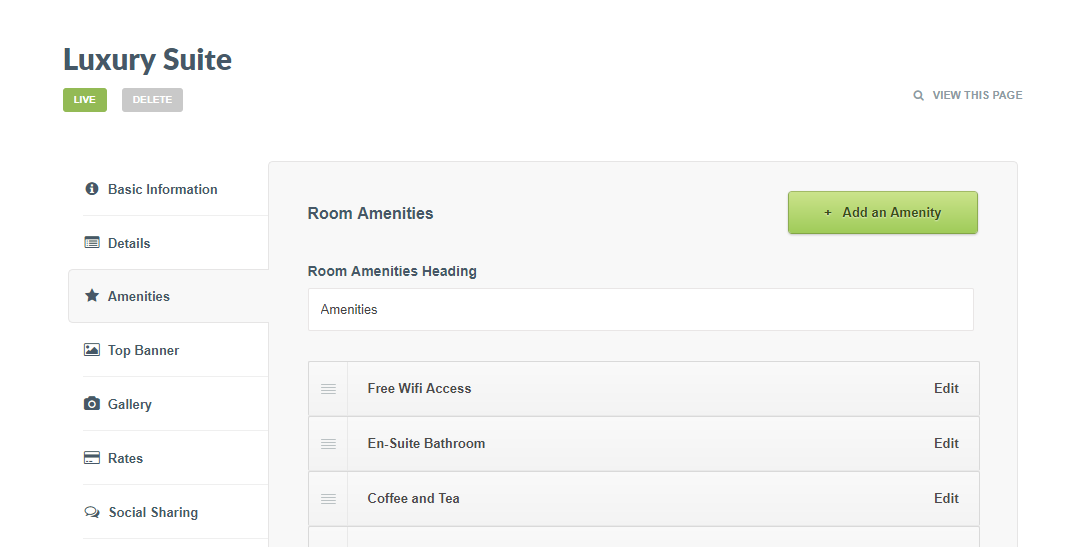
Step 2: Select Amenities in the left-hand menu
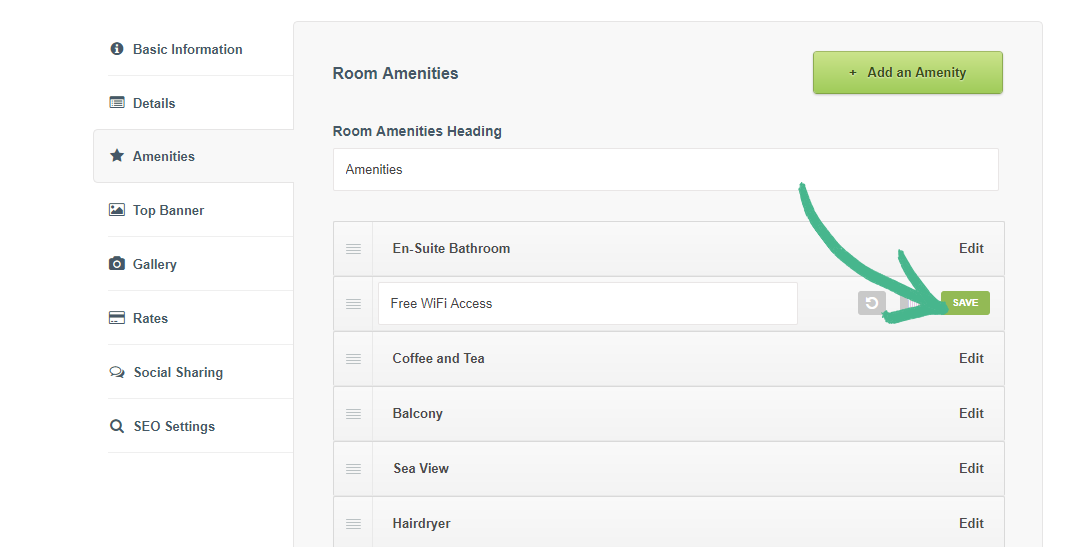
Step 3: Click the Add an Amenity button > A new blank item will appear > Add your Text > Click Save
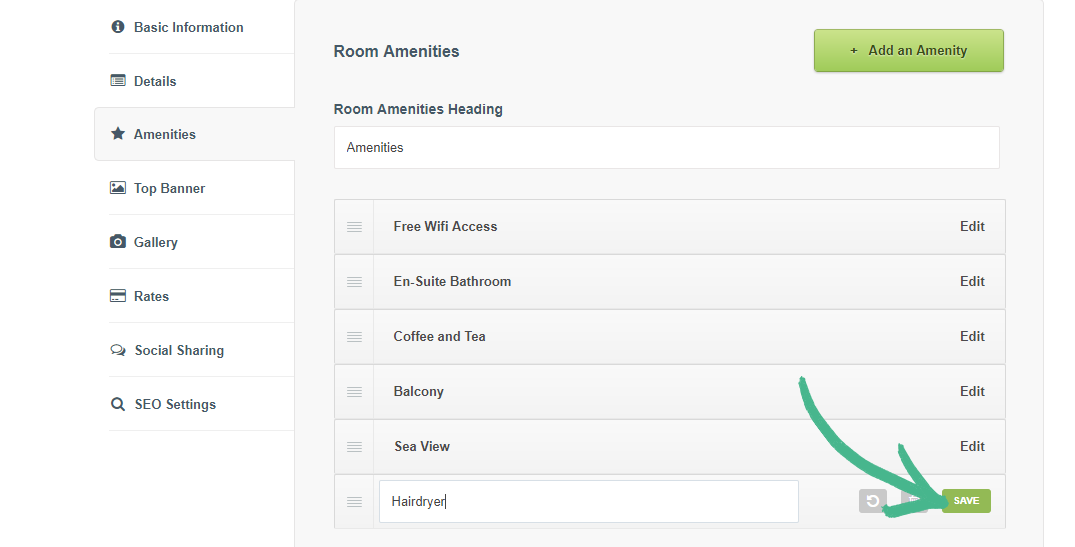
Step 4: Click Edit on the Amenity you would like to change > The text field will open and allow you to edit the Text > Click Save
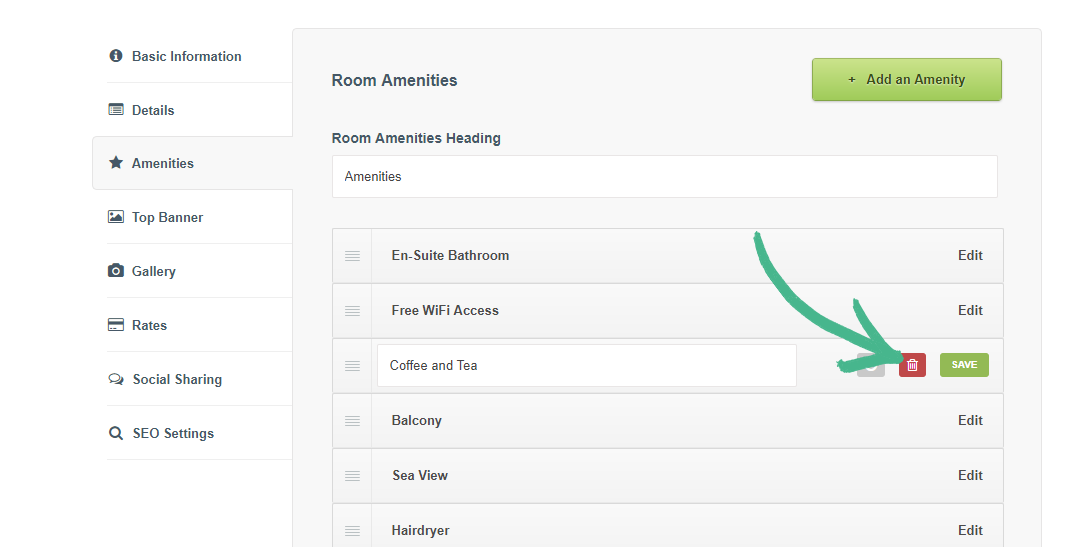
Step 5: Click Edit on the Amenity you would like to change > The text field will open and allow you to edit the Text > Click the trashcan icon to remove the amenity from your list > Click Save
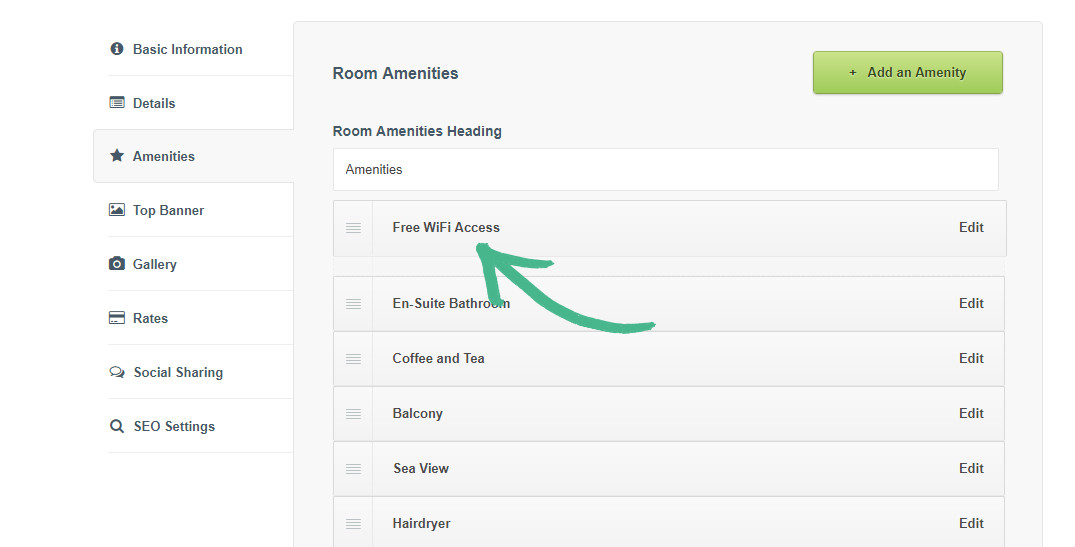
Step 6: Click and hold the handle on the left of an amenity > Drag the item into a new position and release
Note: The order of your amenities will save instantly, there's no need to save when reordering them.
Optional:
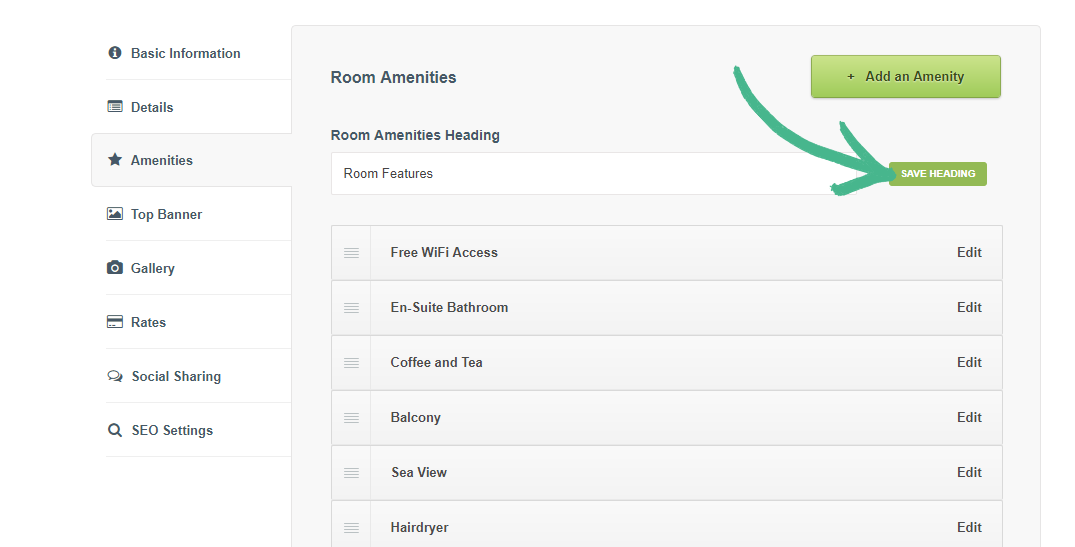
Step 7: To change the Room Amenities heading > Clear the text in the heading field > Type a heading of your choice > Click the Save Heading button