
Working with List Items
List items offer an easy way to add information into various sections. Each list item has a heading, description, and optional image or video with a button link.
In this example, here's how to add List items to a Canvas Page
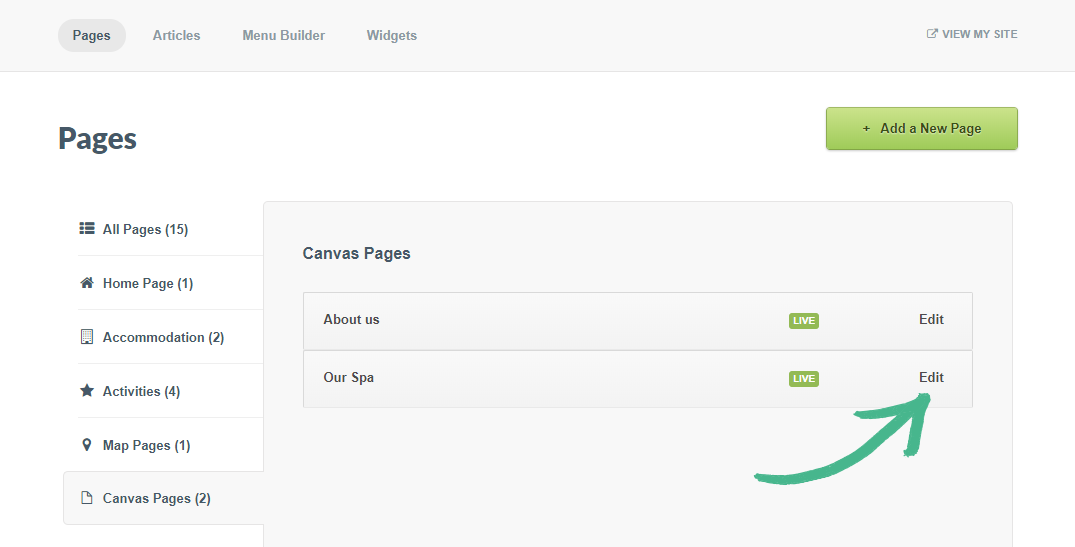
Step 1: Select the Pages Tab > Select Canvas Page from the left-hand menu > Click Edit on the Canvas Page of your choice
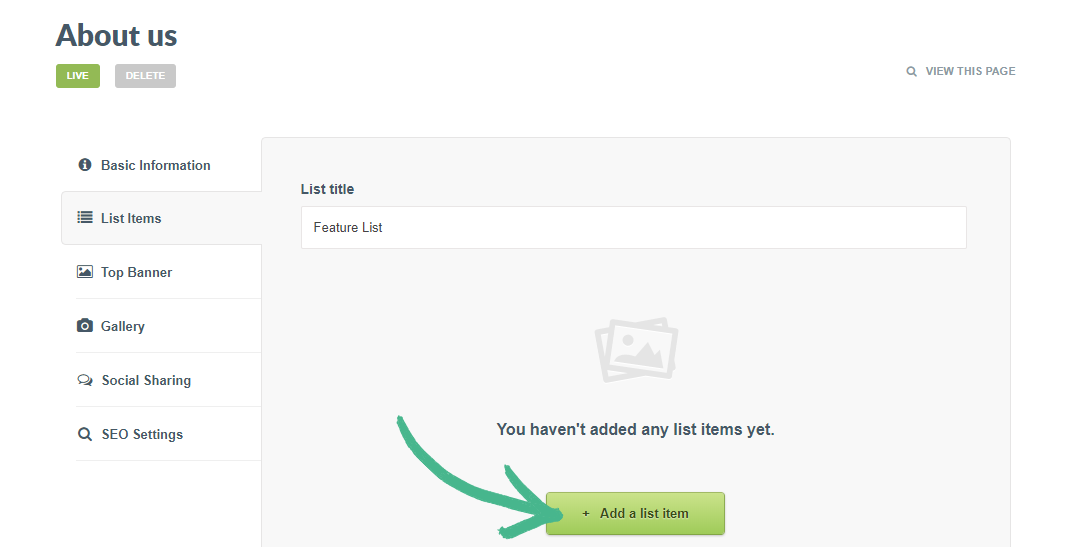
Step 2: Select List Items > click the Add a List Item button > a new List Item tab will open for you to edit.
Note: If you already have list items on this page, the new item will be added below it.
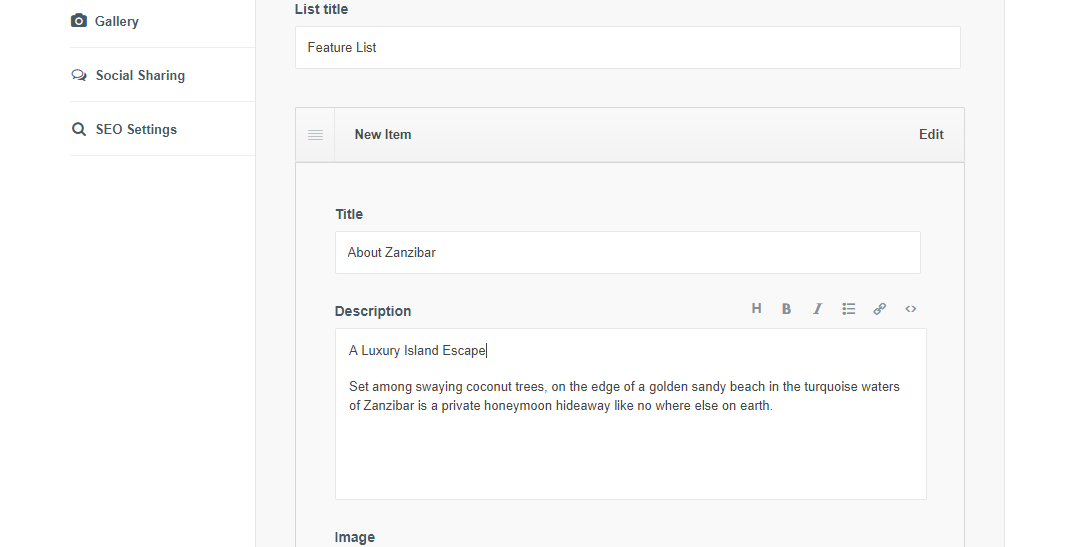
Step 3: Type a Title and Description to the new item you are creating
Step 4: Click Add Media to add an image or video (Optional)
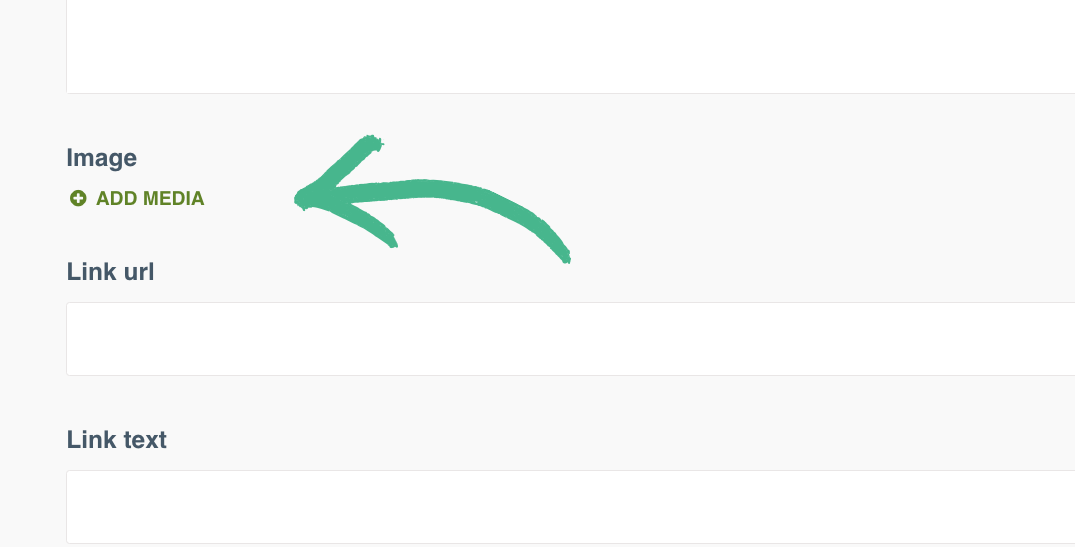
Step 6: Paste the web address under Link URL > Type Button text into Link Text field
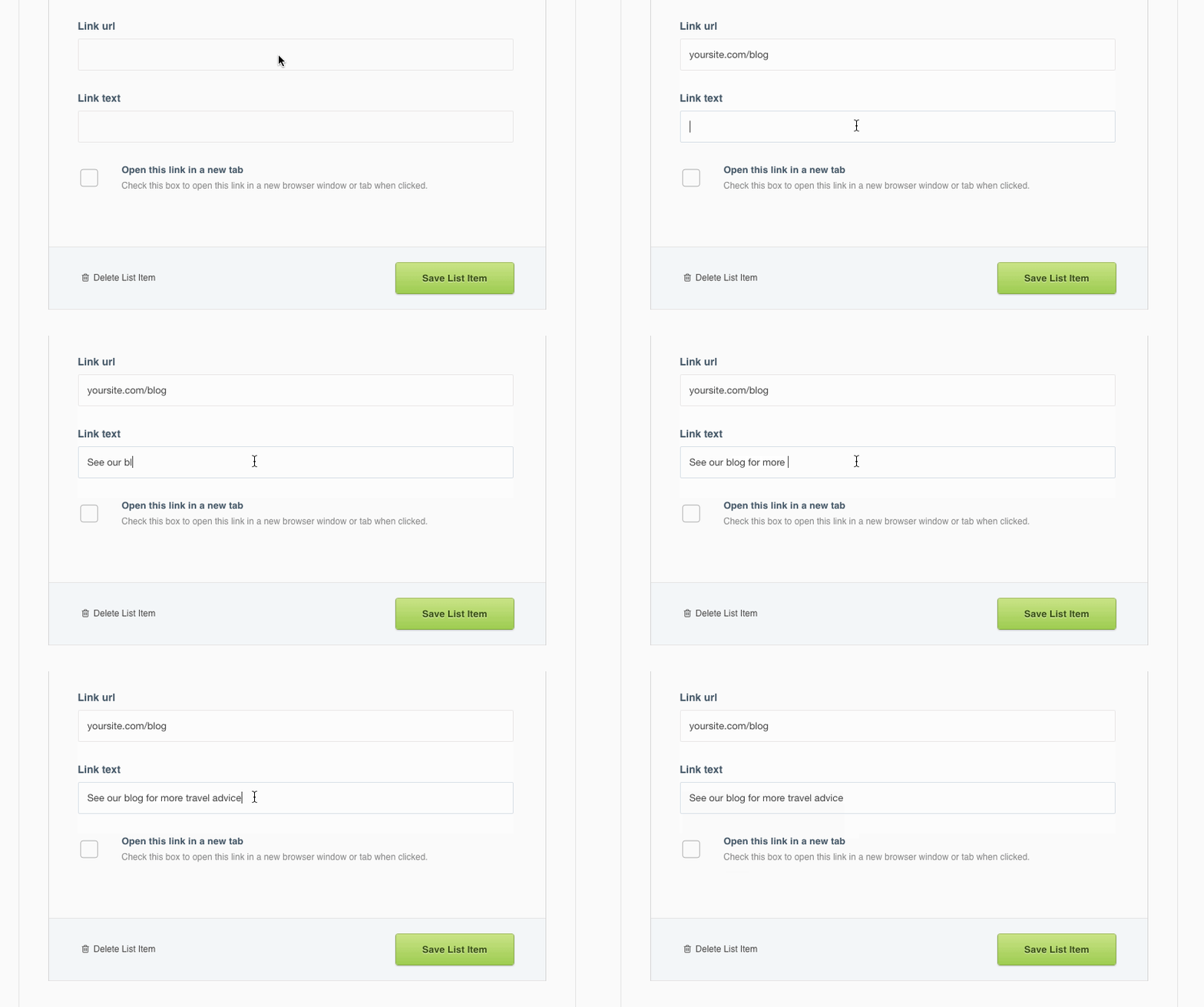
Note: You can set this link to open in a new tab in your visitor's browser. This is recommended if the link is a different website.
Step 7: Click Save List Item