
Deleting Images from File Manager
Important: Deleting a photo from your File Manager removes this media across your entire website. Before deleting files from your File Manager, make sure that they are not used on slides or galleries that you would like to keep.
Deleting a single image
Step 1: Select the File Manager tab > The Photos section will automatically be selected
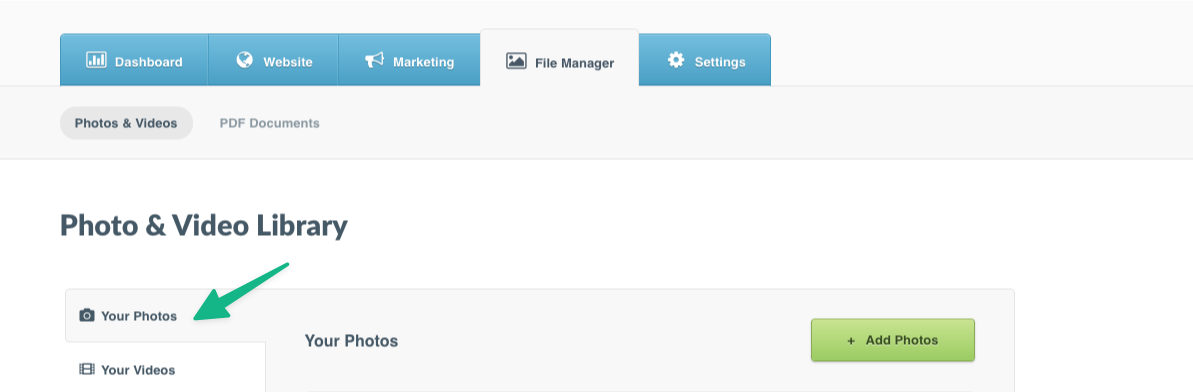
Step 2: In the Your Photos section in the left-hand menu > Find the photo or video thumbnail you would like to remove > Click ••• in the bottom right-hand corner of the file's thumbnail
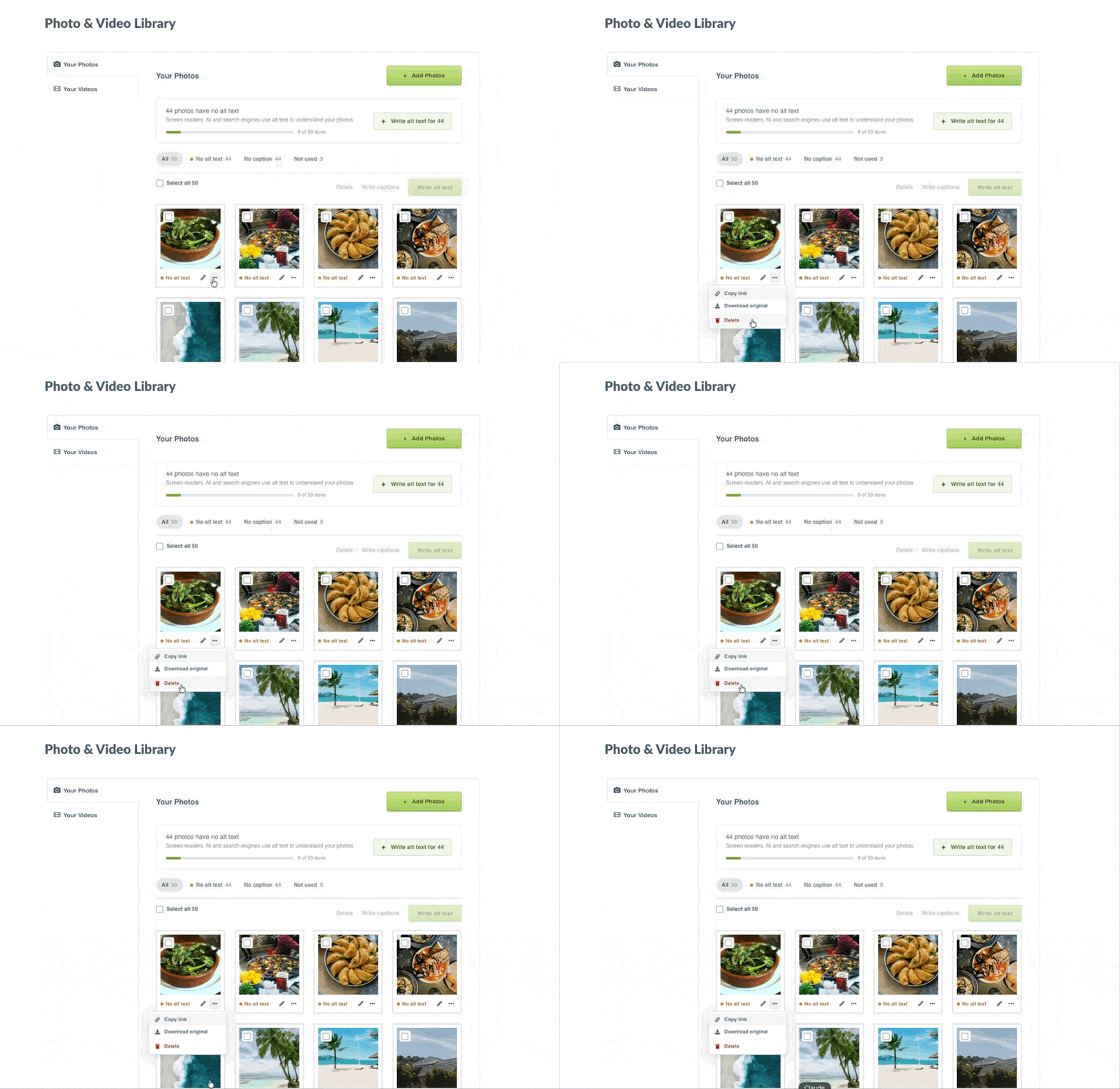
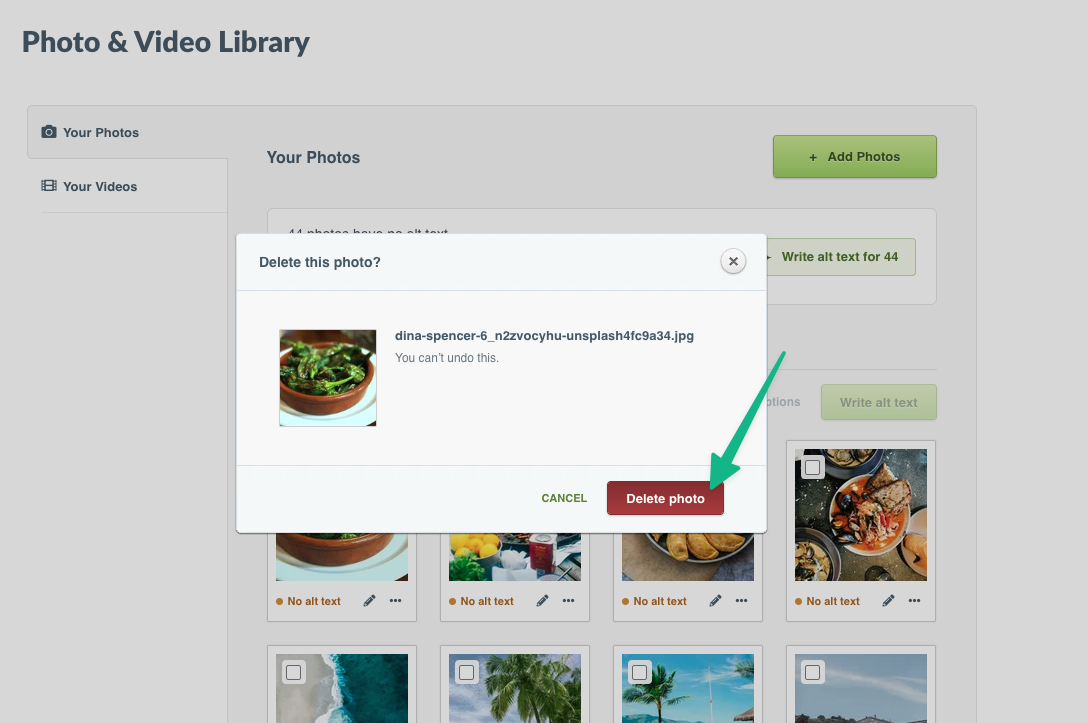
Step 3: A confirmation message will pop up > Click Delete Photo
Deleting multiple images at once
Step 1: Select the File Manager tab > In the Your Photos section, click Not used to see only the images that aren’t on your website (optional)
Step 2: Tick the checkbox in the top left-hand corner of each image you would like to remove, or tick Select all on this page to select every image on the page
Step 3: Click Delete in the toolbar above your images > A confirmation message will pop up > Confirm to delete the selected images