Linking a Springnest page to another page within your website.
Springnest allows you to link various pages and sections of your website. You are able to link a page/section to different locations within your website as well as linking pages/sections to other websites. It is important to think about what you want to achieve when linking to a different website, because linking a page to a completely different website will simply drive potential clients away from your website.
1. Using the Standard Button feature
Within specific sections, Springnest has a standard button feature which allows you link a section to different locations within your website (or another website).
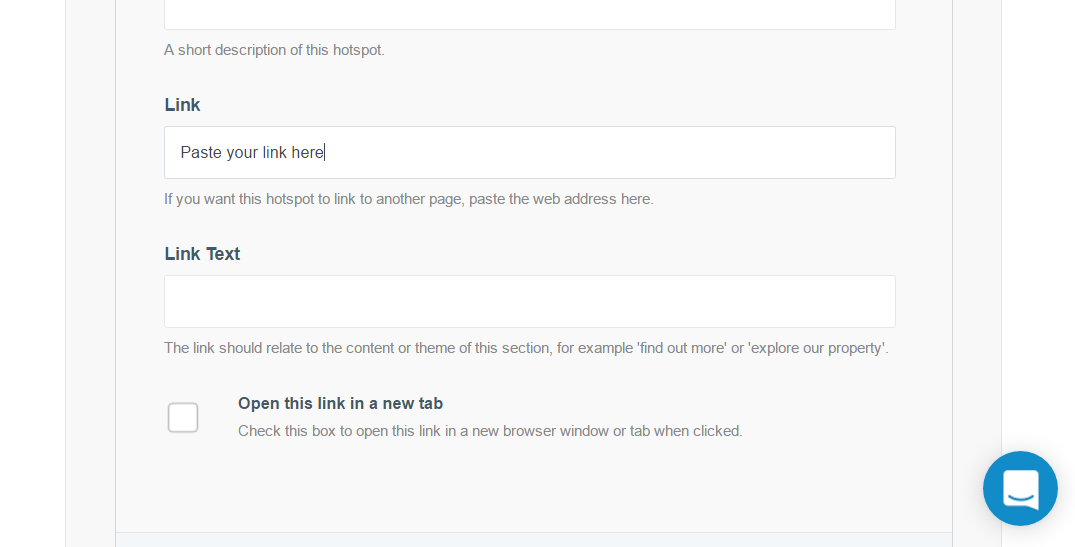
Step 1: Click the Website tab > Select your Homepage > Click Content Hotspots in the left-hand menu > In the Link field, copy and paste the web address
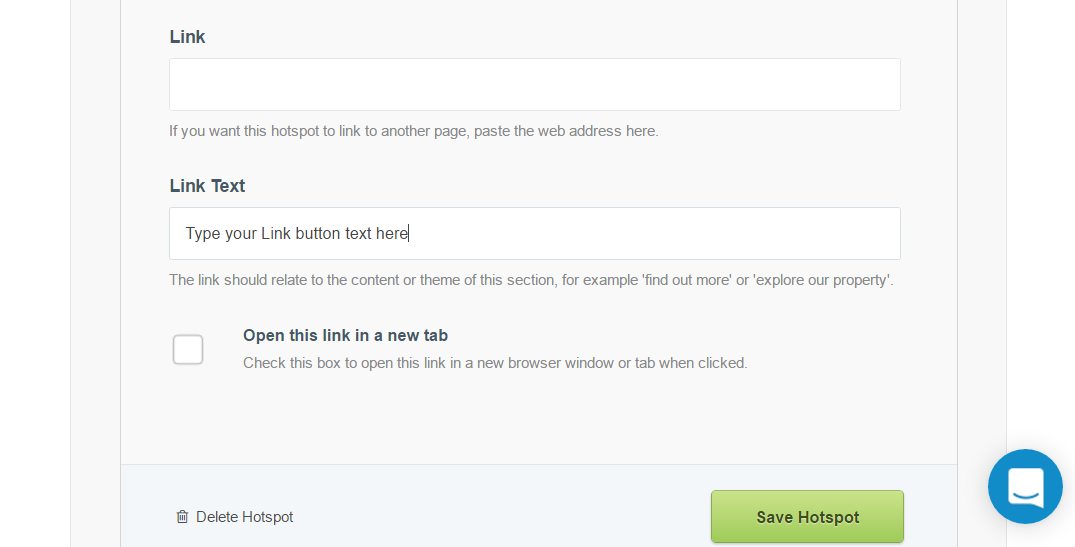
Step 2: In the Link Text field, type the text you would like to be displayed as the call-to-action button
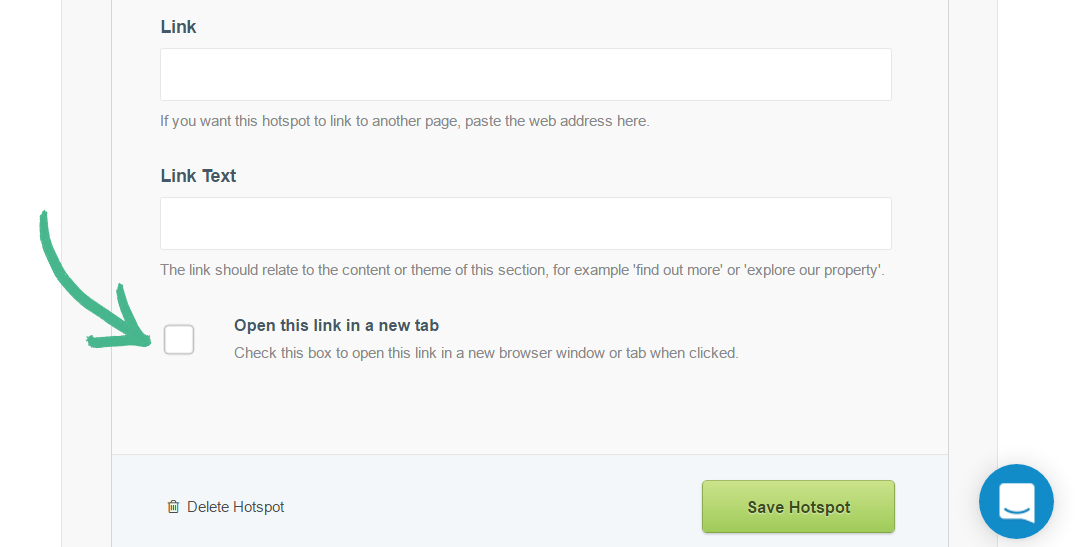
Step 3: By ticking this box, the link will open in a new browser window once clicked
Note: The top banner and map marker button feature will not have the option to open the link in a new tab
2. Create a Link
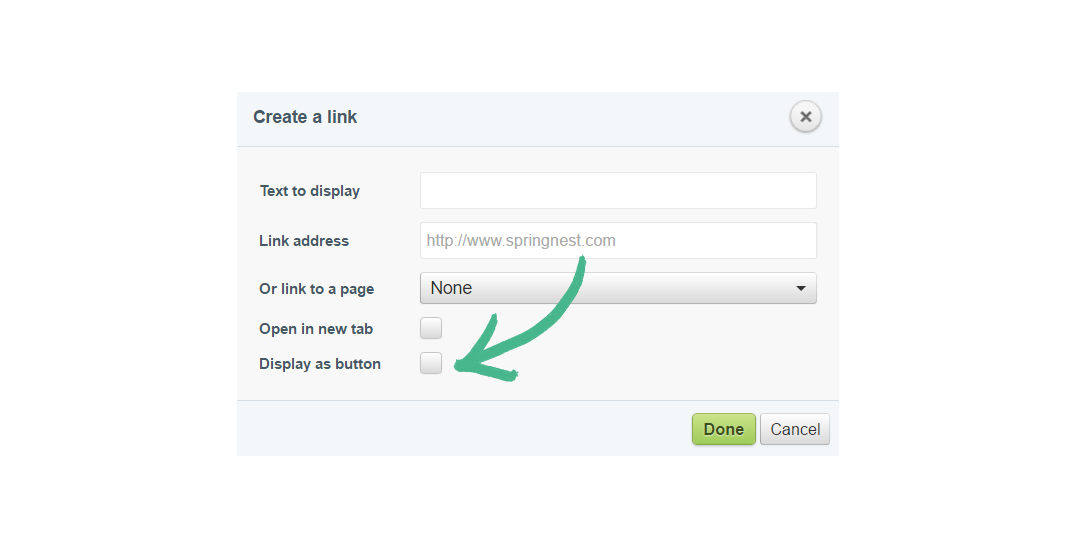
Springnest allows you to create links within Description and Content fields, here's how you create a link:
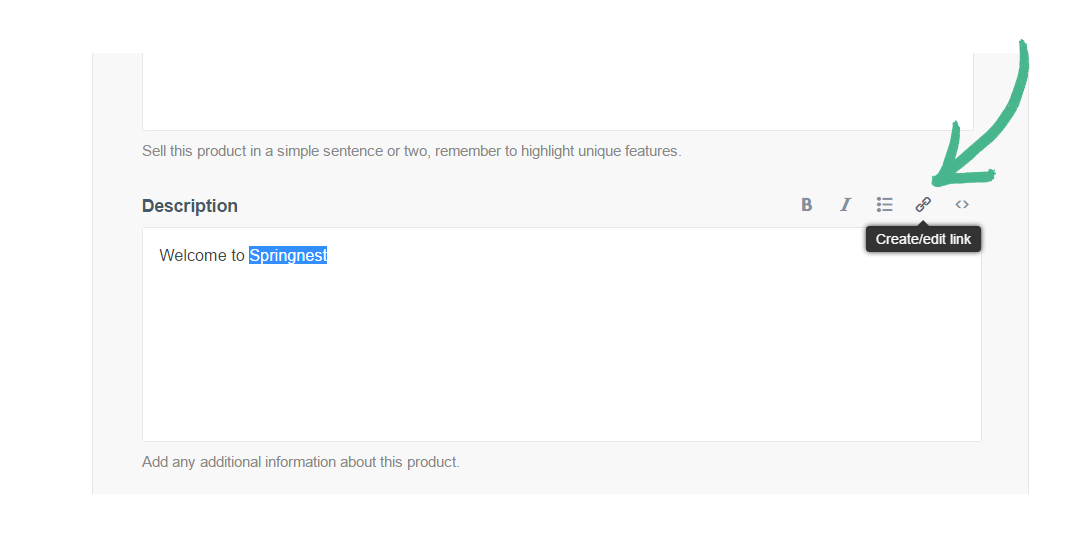
Step 1: Within the Description/Content field > Highlight a specific portion of text you would like to link to a different location > Click the Create/edit link which is the paperclip icon
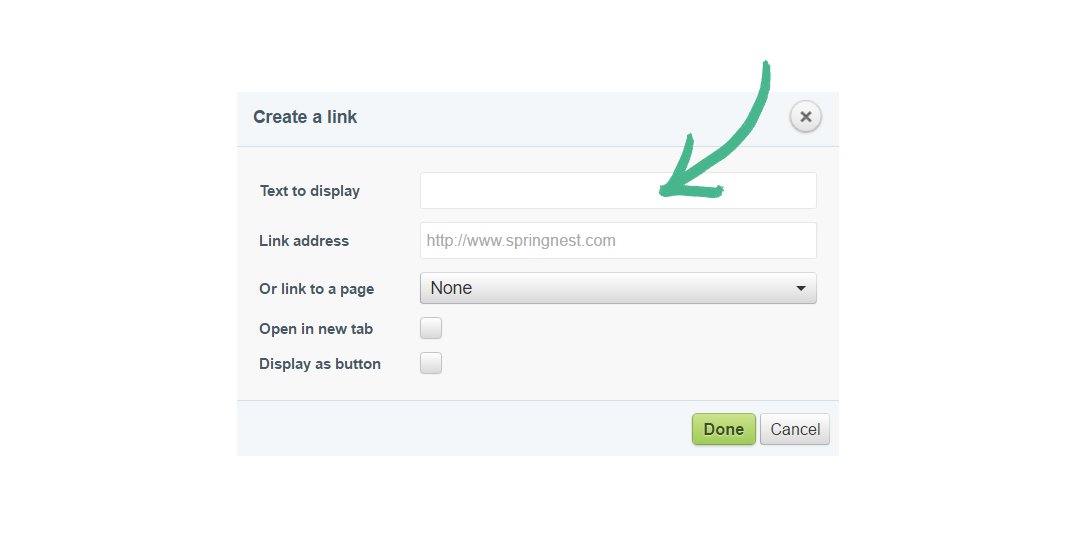
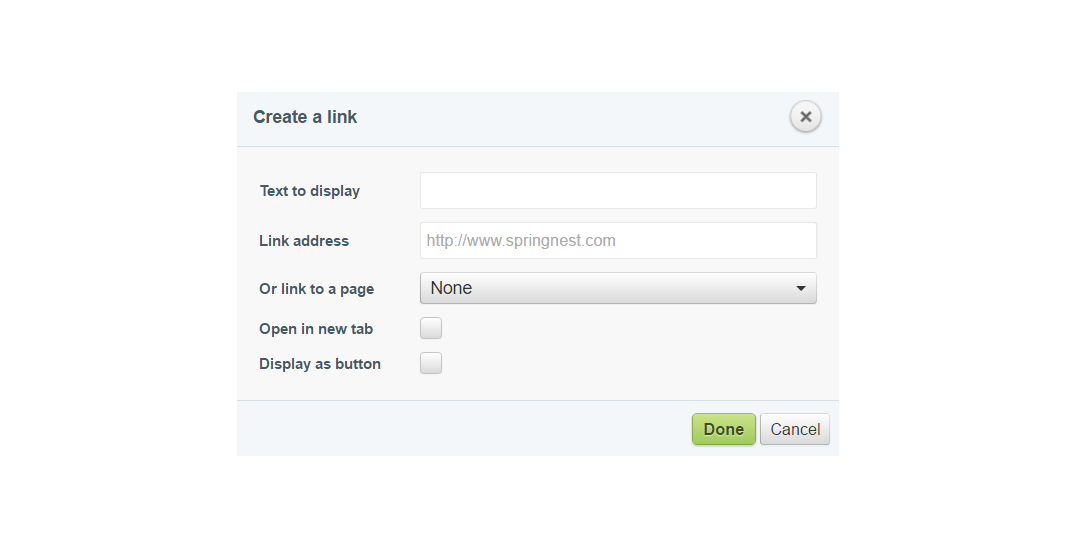
Step 5: Check the Display as Button box if you would like to convert the text to a call-to-action button