
Adding or Editing a booking button on an Activities page
You can set the link and text for the booking buttons on your website. If you use a third-party booking and availability system, we recommend linking to that. If not, link to your contact/enquiry form.
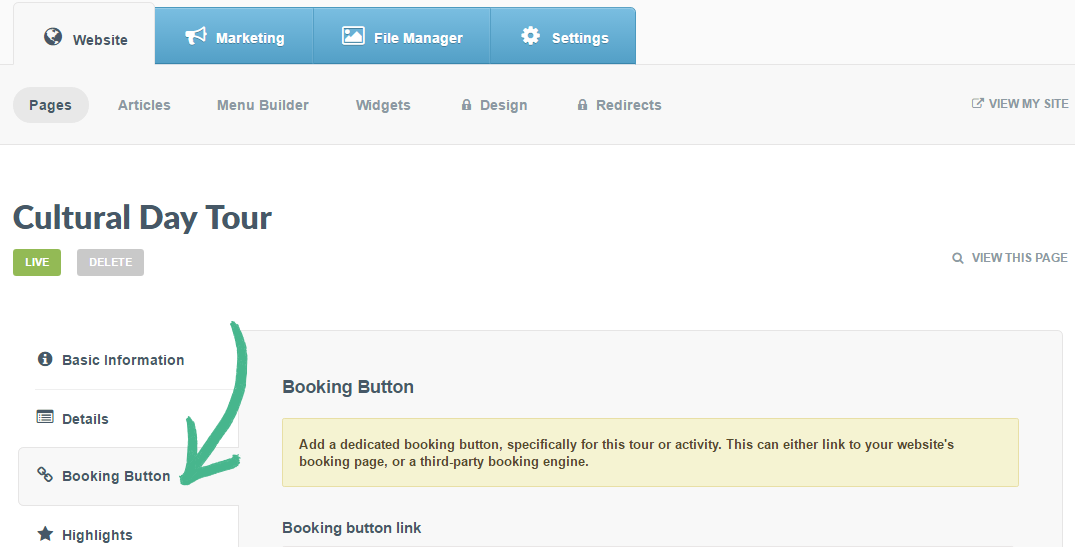
Step 1: Select Website tab > Activities > Click Edit on an existing Activity > Click Booking Button
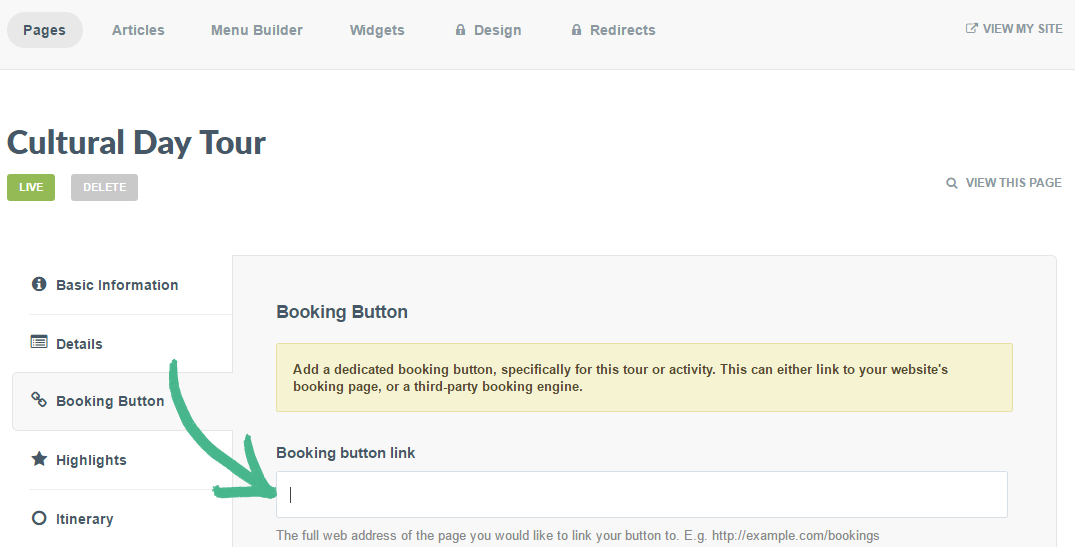
Step 2: Booking button link field > Paste the full web address of the page you would like to link your button to
Step 3: Booking button text > Type the wording that you would like to appear on the button
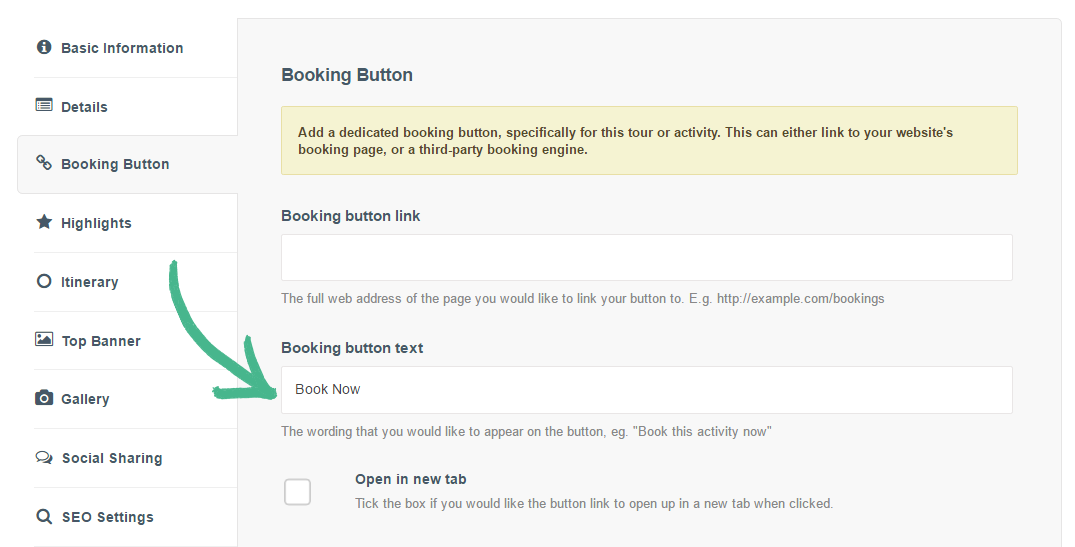
Step 4: Tick the Open in new tab box if you want the button link to open up in a new tab when clicked
Helpful Hint:
When updating your booking button on a Special Offer the process remains the same.
To add or edit your main booking call-to-action, click the Settings tab > Booking Link