
Adding Text and Buttons to top banners and sliders
Edited
Adding text and buttons to a slider or banner, is a useful way to create context around the image that is displayed in the slider or banner, and you're able to redirect a website visitor to other relevant content, by adding a button link.
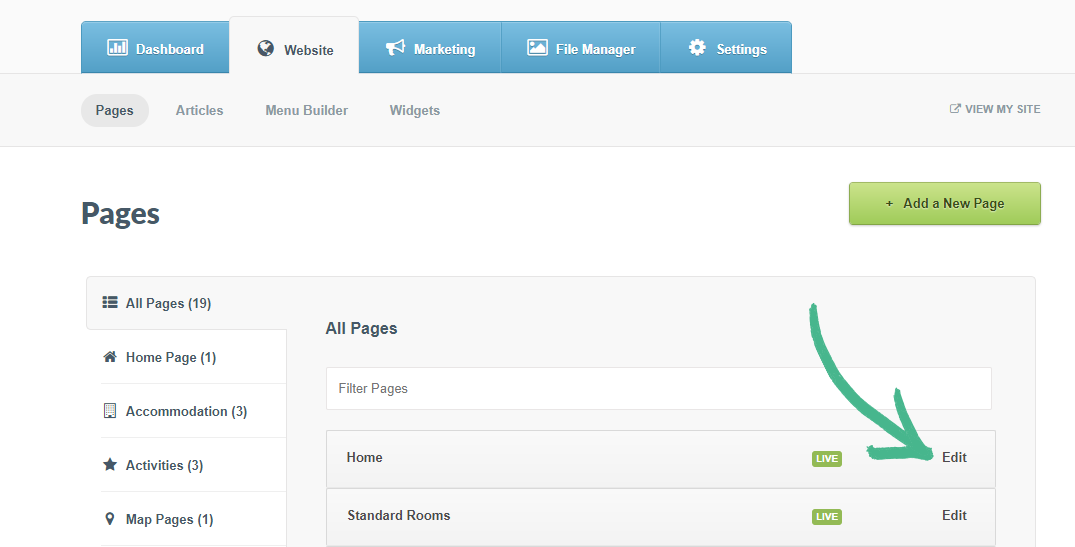
Step 1: Select the Pages section > Click Edit, next to the Home page title
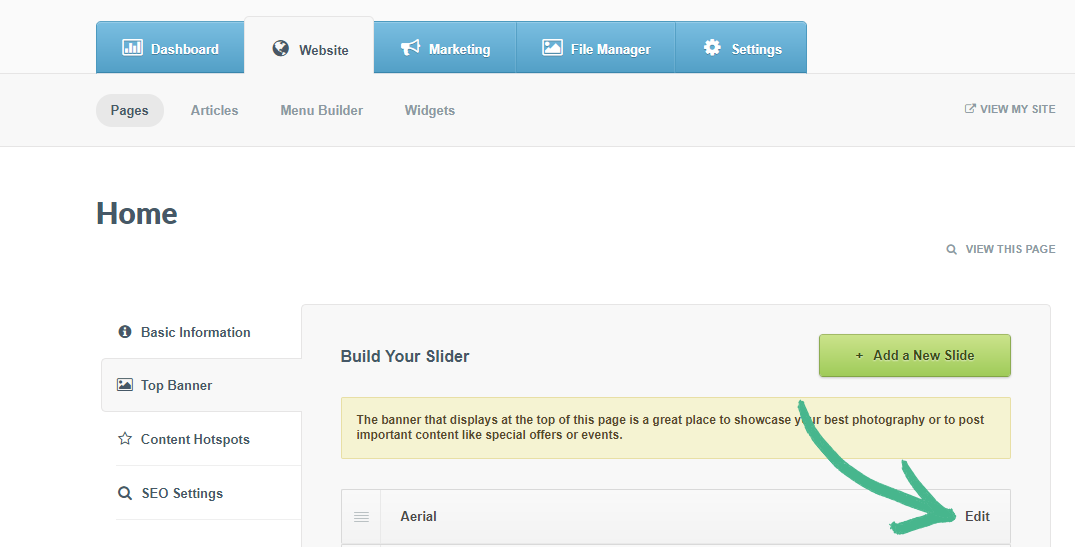
Step 2: Select Top Banner in the left-hand menu > Click Edit next to the slide you would like to add Text or a Button to
Adding Text:
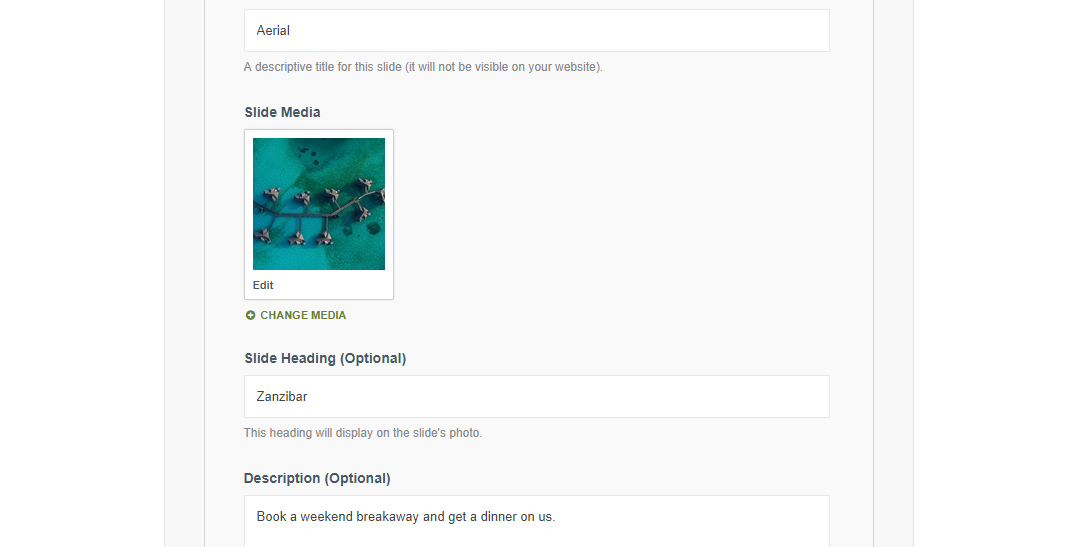
Step 3: Once you've clicked Edit, you'll be able to add a Slide Heading and Description
Adding a Button:
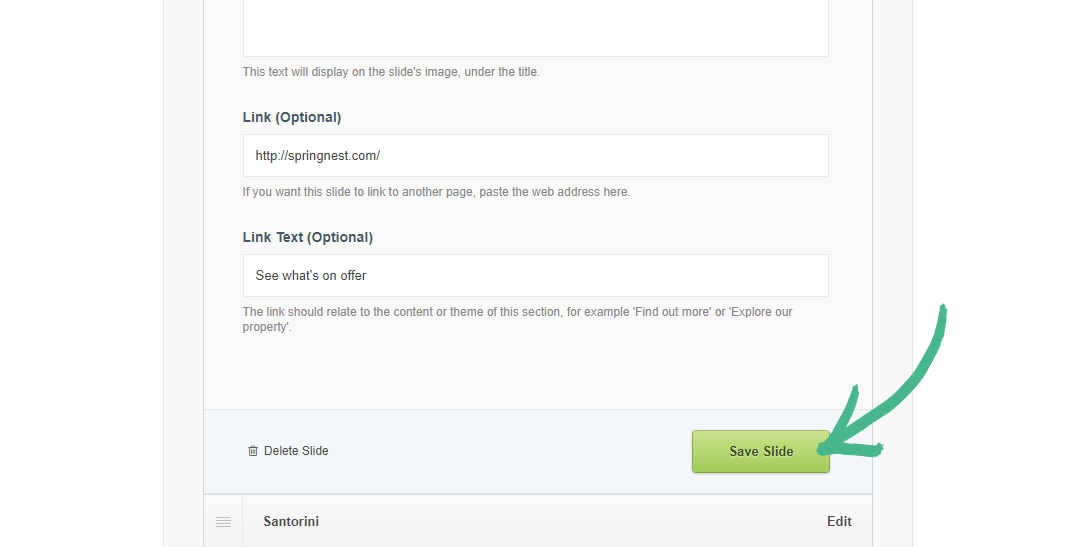
Step 4: Paste the web address into the Link field
Step 5: Add the Button text into the Link Text field (Eg: Find out More) > Click Save
Was this article helpful?
Sorry about that! Care to tell us more?