
Adding videos to sliders and top banners
Springnest offers a prominent way to present videos from Youtube or Vimeo on your website. These can be used within sliders or top banners across your web pages; once you've pasted the video URL into the Link field, it is automatically recognised as a video link, and behaves accordingly.
In this example, we're adding a video to the homepage top banner:
Video Layout Option 1: Add a play icon button to your slide
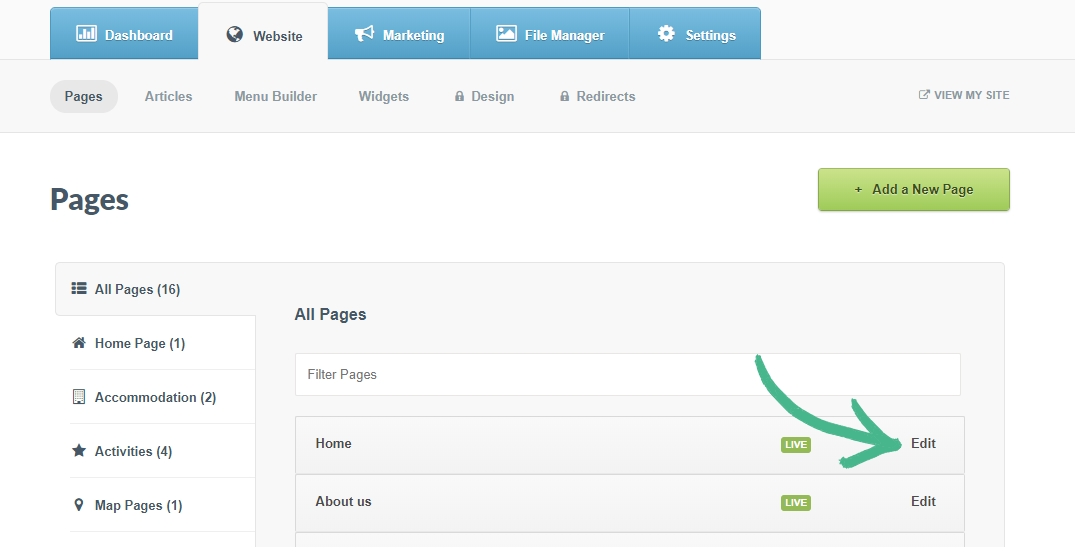
Step 1: In the Website tab > select your Home Page
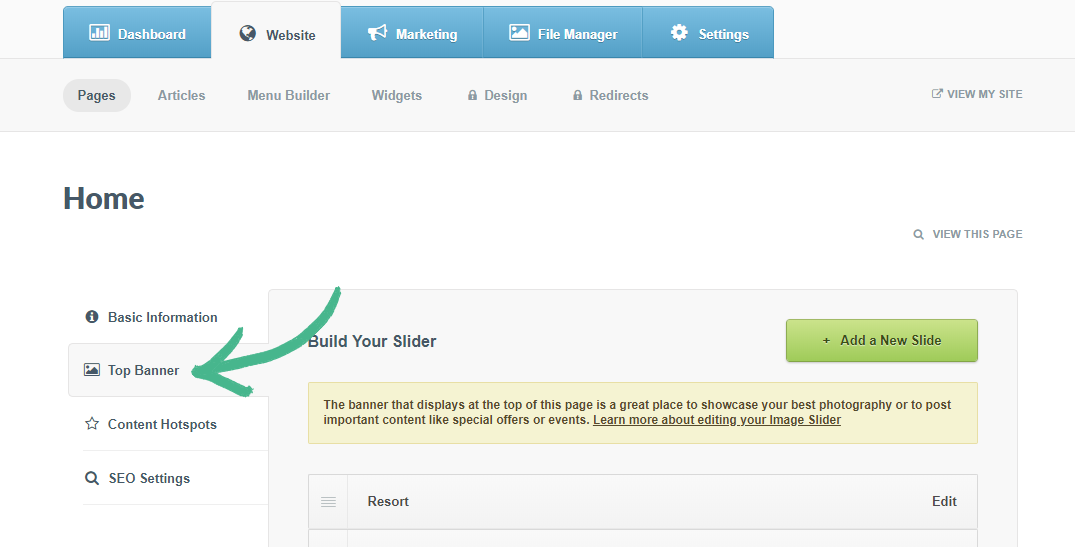
Step 2: Click Top Banner in the left hand menu
Step 3: Click the +Add a New Slide button > Complete the Title field and select an image of your choice in Slide Media field
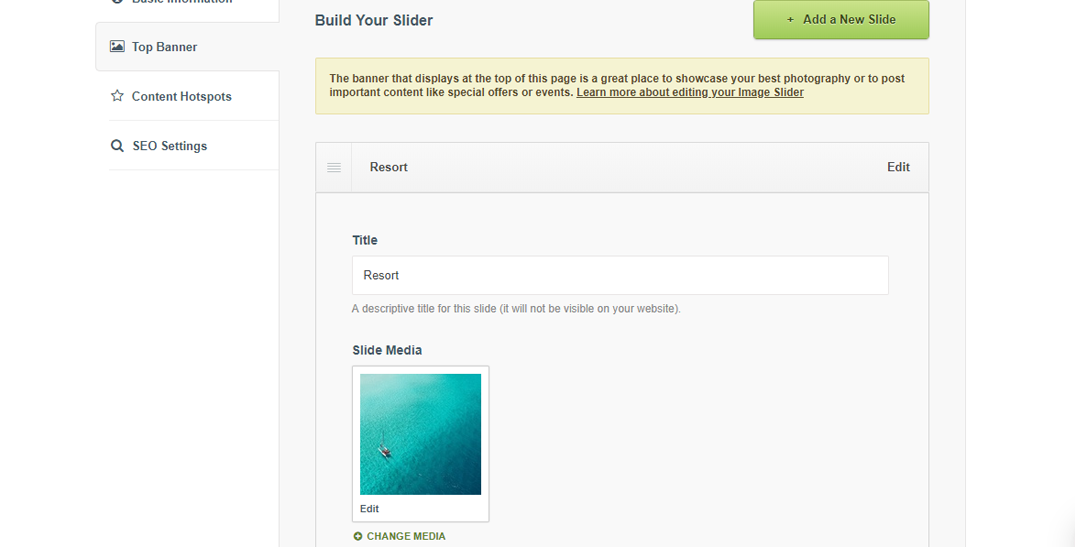
Note: You can either edit and existing slide or add a new slide when adding a video
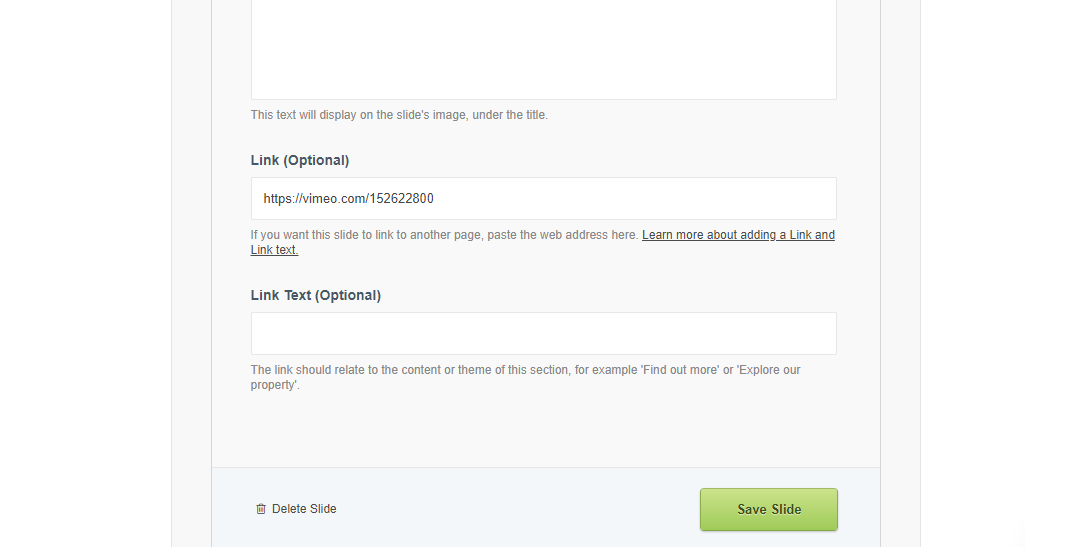
Step 4: Copy and paste the video URL/link into the Link (Optional) field
A preview of Video Layout Option 1:

Video Layout Option 2: Add a play button with text to your slide
Step 1: In the Website tab > select your Home Page
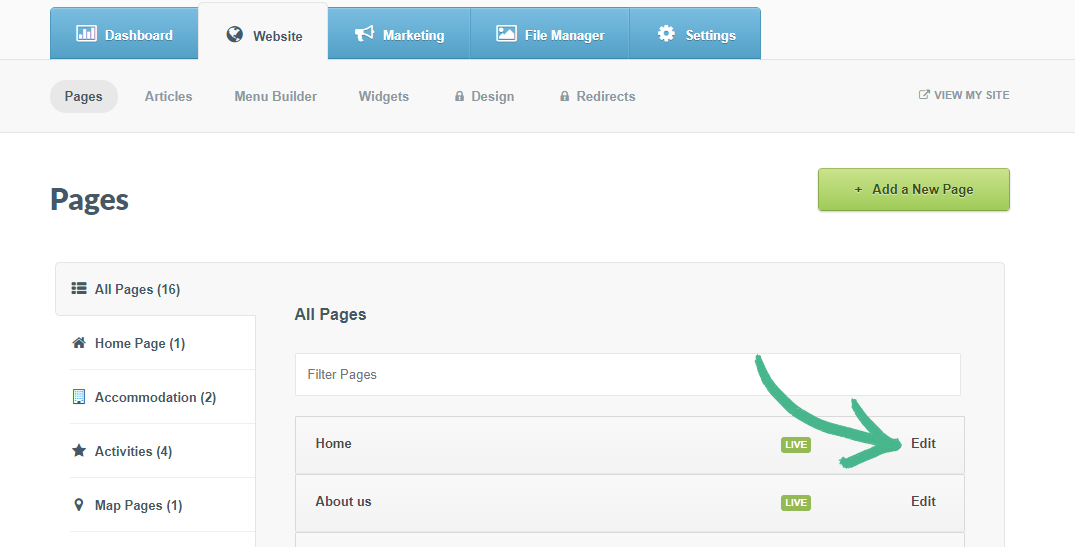
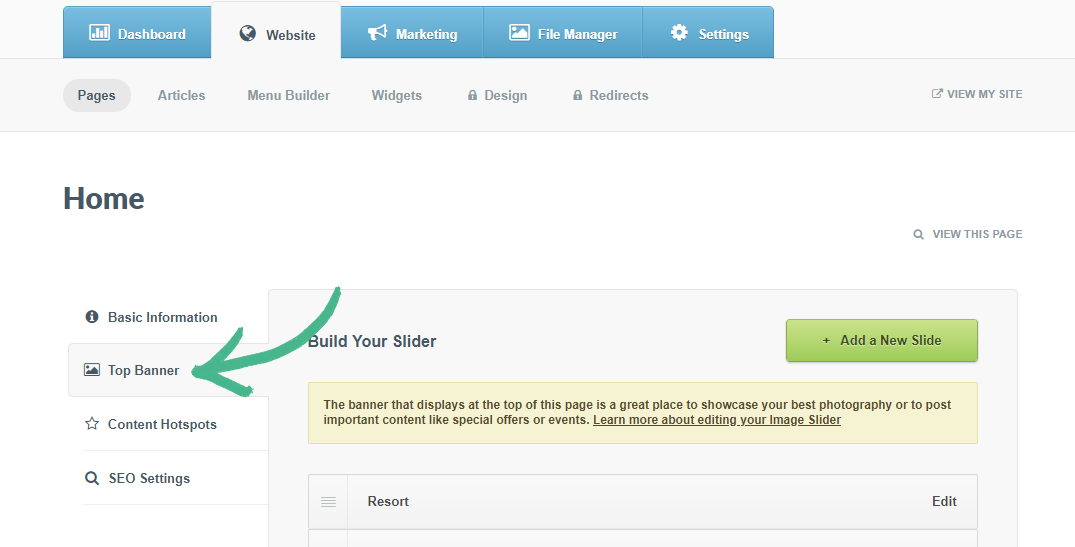
Step 2: Click Top Banner in the left hand menu
Step 3: Click the +Add a New Slide button > Complete the Title field and select an image of your choice in Slide Media field
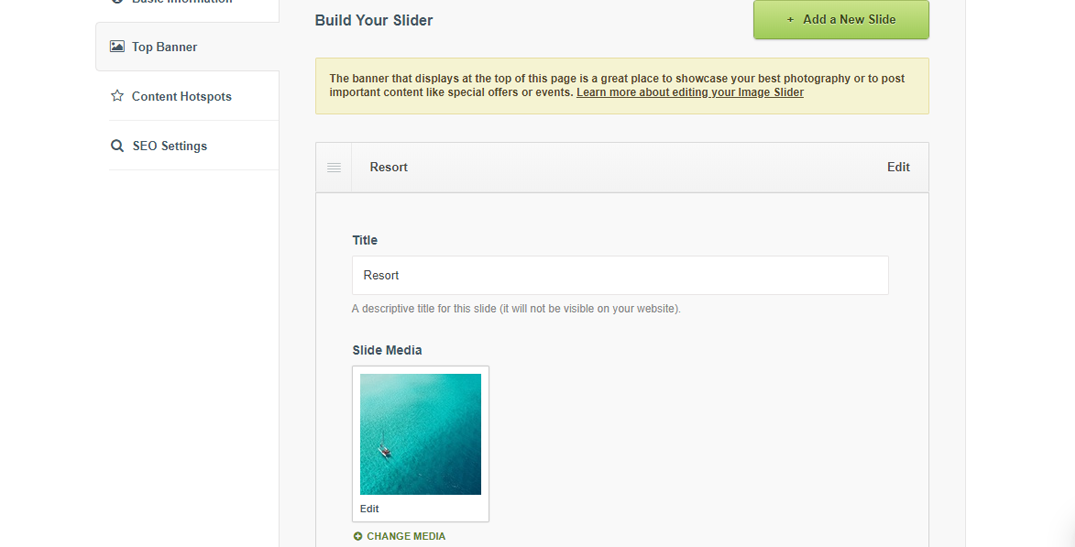
Note: You can either edit and existing slide or add a new slide when adding a video
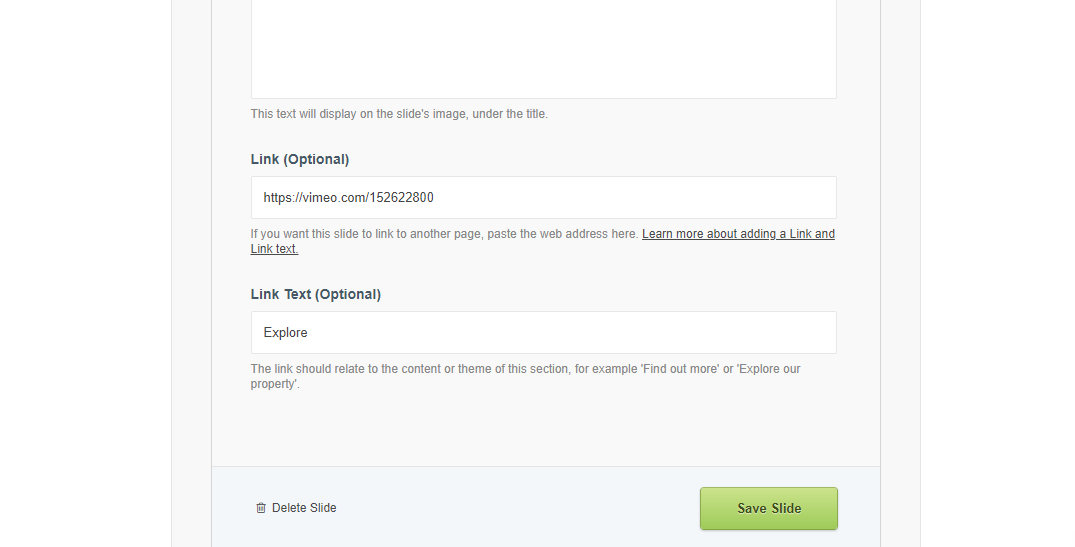
Step 4: Copy and paste the video URL/link into the Link (Optional) field
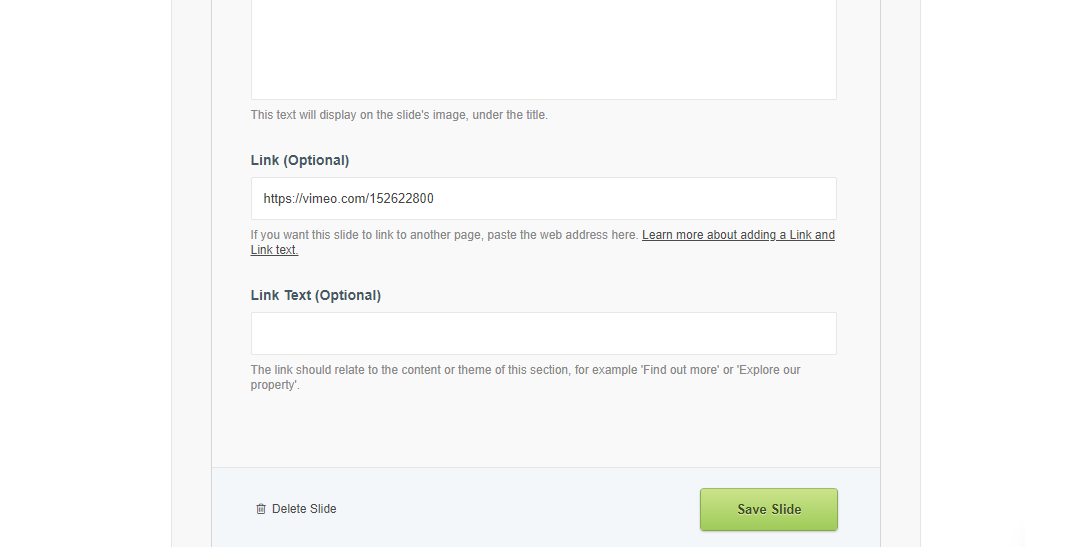
Step 5: Add concise and descriptive text into the Link Text (Optional) field
A preview of Video Layout Option 2: