
Creating a Special Offer or Promotion
Online promotions and offers are proven ways to manage occupancy, attract a new market segment, or promote a new product offering. You can now easily create a special offer or package in Springnest, publish it as an optimised landing page on your website, and then share a link to your social media channels.
Create your Special Offer
Step 1: Select the Marketing tab > By default you will land on Special Offers
Note: If you have existing offers on your website, they will appear in a list format.
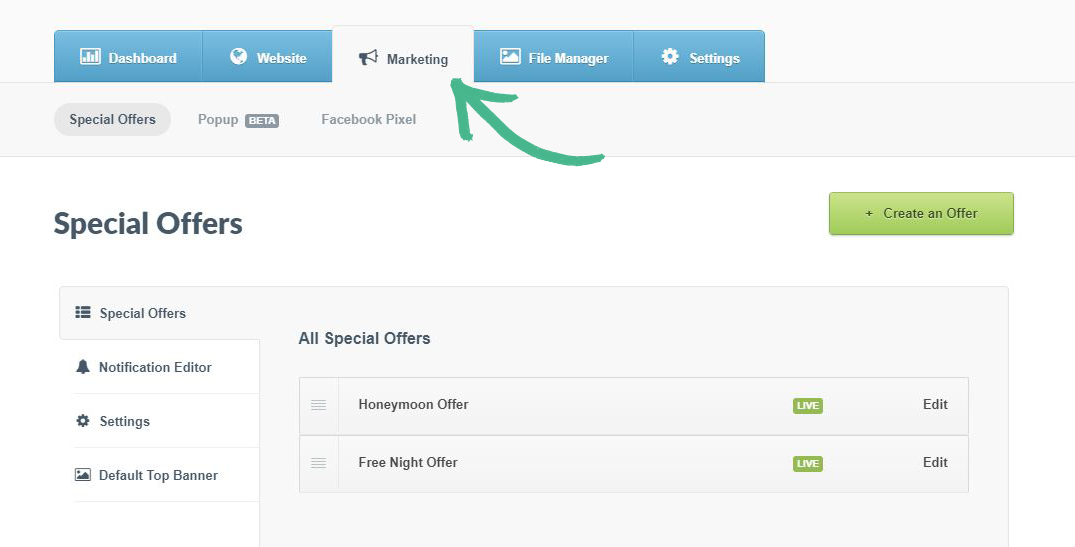
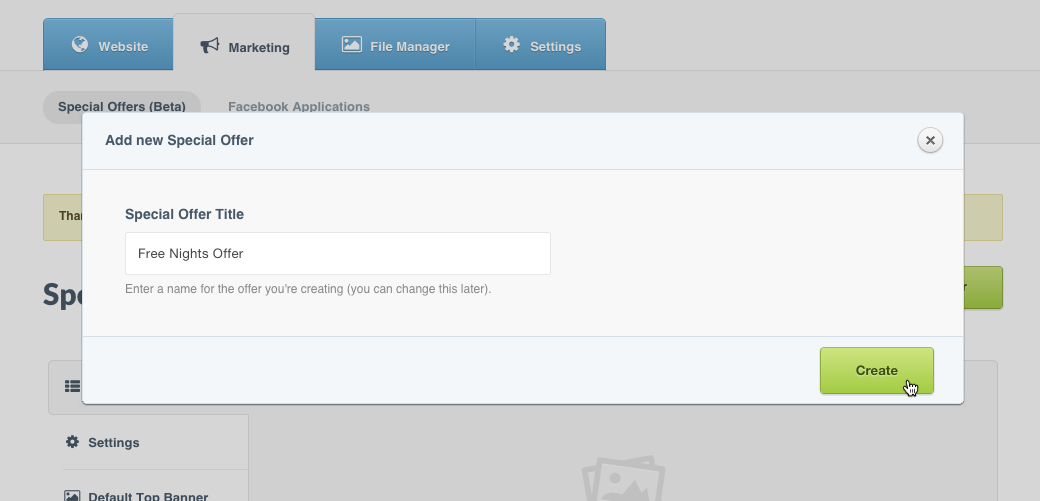
Step 2: Click the Create an Offer button > Enter a Special Offer Title > Click Create
Note: Your offer has been created, and will remain Hidden until you are ready to publish it.
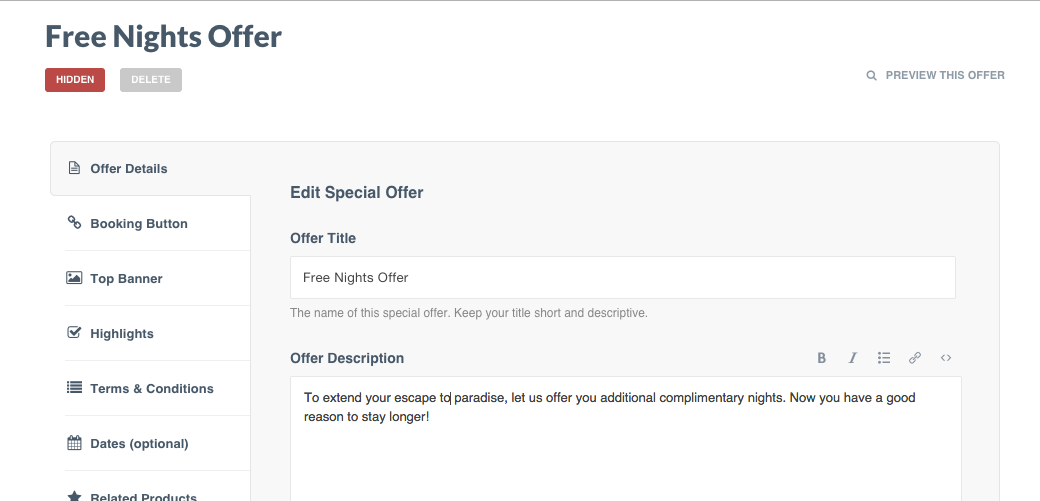
Add more details about the Offer
Step 3: Add a Offer Description
Note: The description should explain your offer in a brief paragraph.
Step 4: Add a Offer Hint
The purpose: To draw attention to the offer, and sell the value in a few words. It's your chance to convince your website visitors that they'll miss out if they don't take advantage of the offer.

Add Media
Step 5: Click Add Media to add a feature video or image for your offer (recommended)
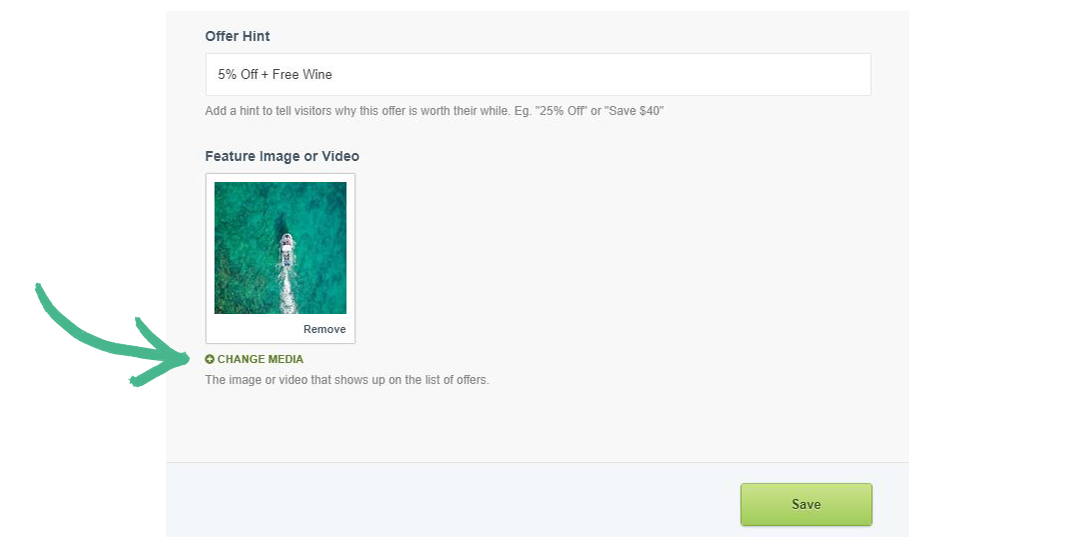
Note: Avoid using pamphlet designs or images with wording and text on it. Rather use a strong photograph of your product, that relates to the offer.
Refine details about where the offer is displayed
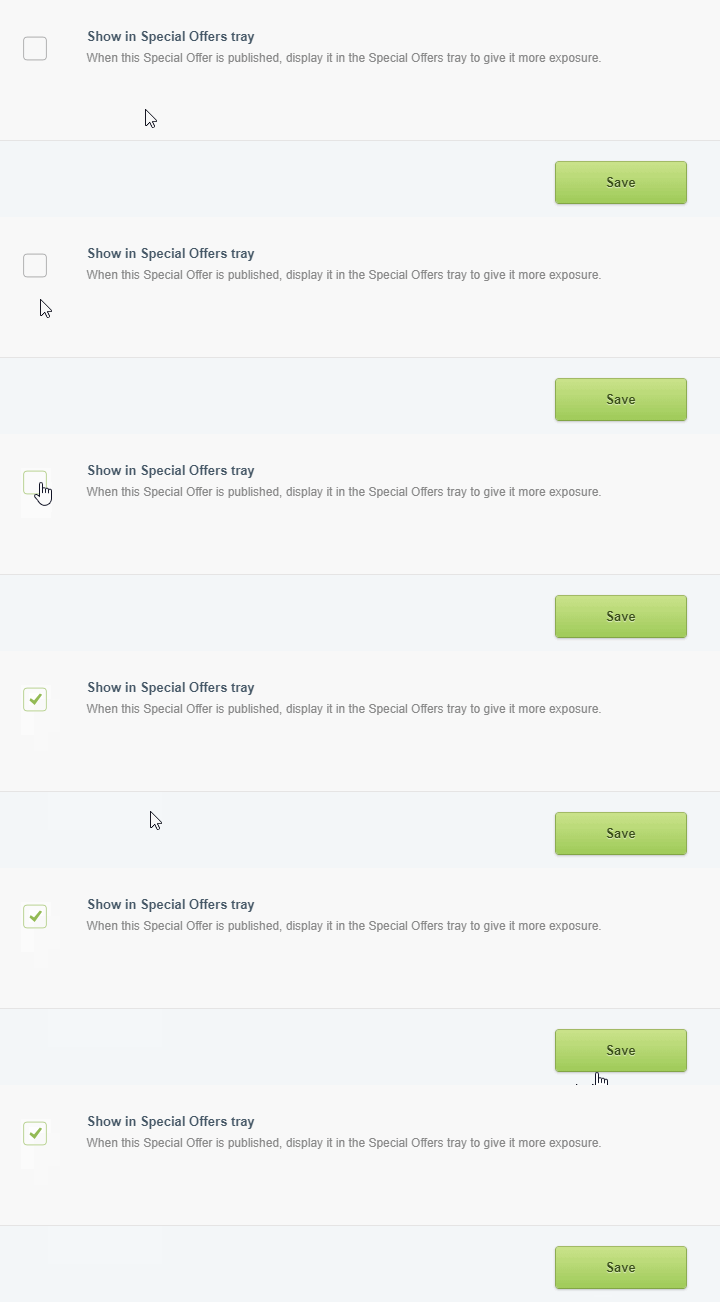
Step 6: Click the check box if you would like to display the promotion in your Special Offers tray
Add a booking button
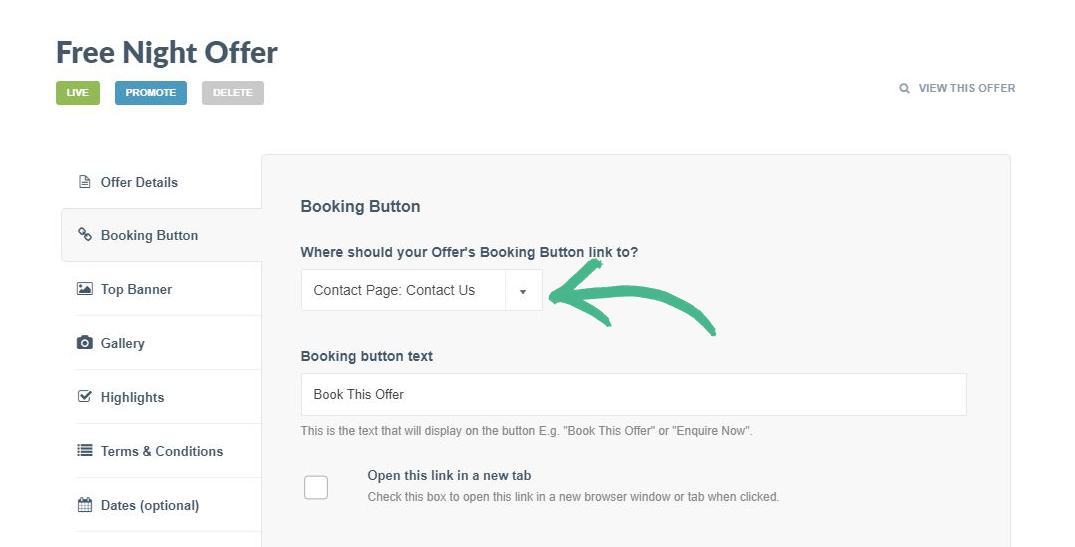
Step 7: Each offer has its own dedicated Booking Button. Link this to your contact page, to a Pop-up Enquiry form, directly to your booking engine, or to any custom link of your choice (you'll need to copy and paste this in).
Add important details about the offer
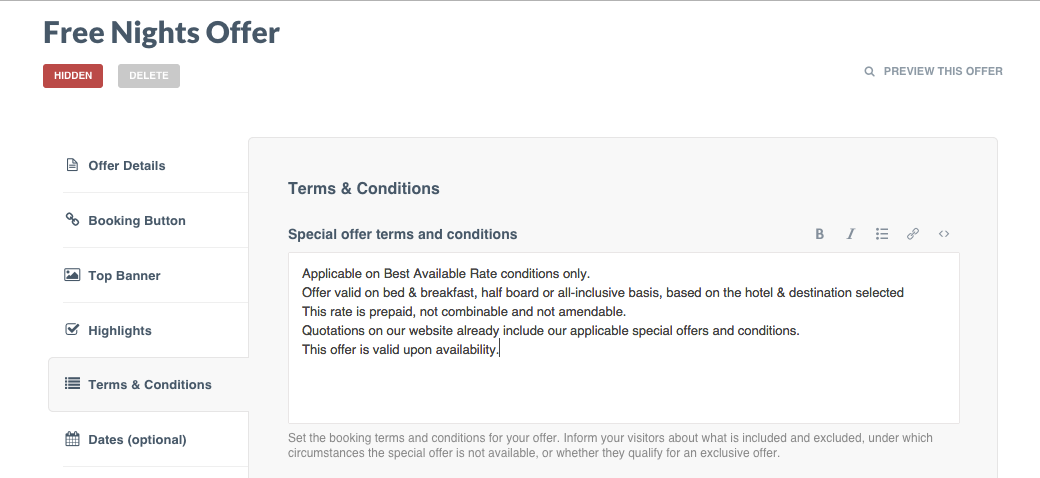
Step 8: Enter Terms and Conditions for your offer
Note: Inform your visitors about what is included and excluded, under which circumstances the special offer is not available, or whether they qualify for an exclusive offer.
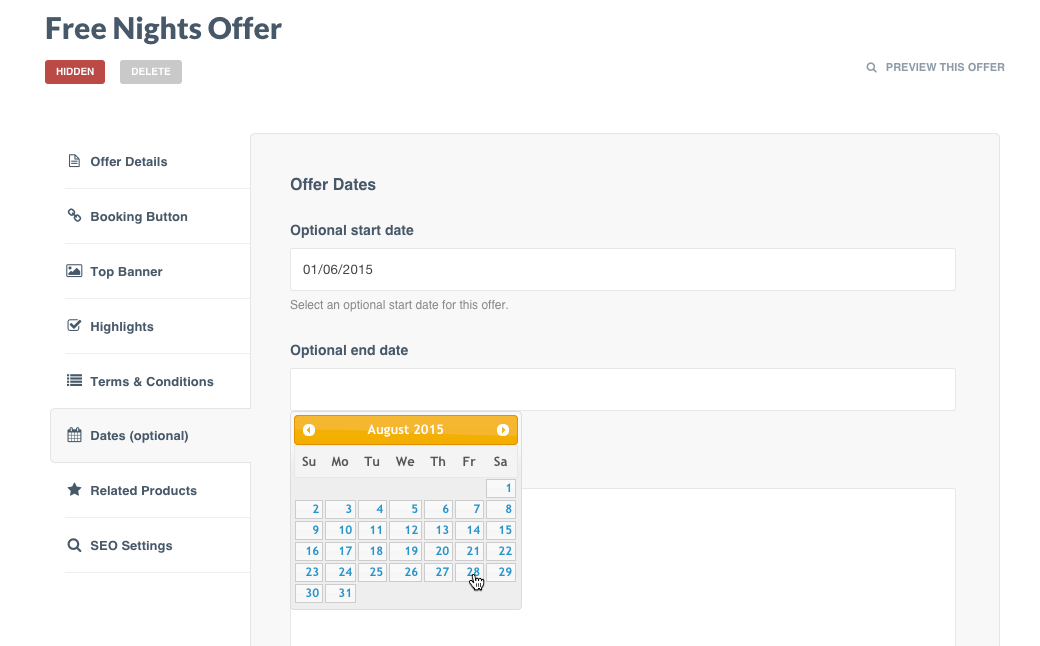
Step 9: If an offer is only valid for a specific period of time > Add Offer Dates > Click Save
Note: By ticking the Hide this offer when it expires box, your offer will automatically be hidden after its end date.
Preview
Step 10: Preview your offer.

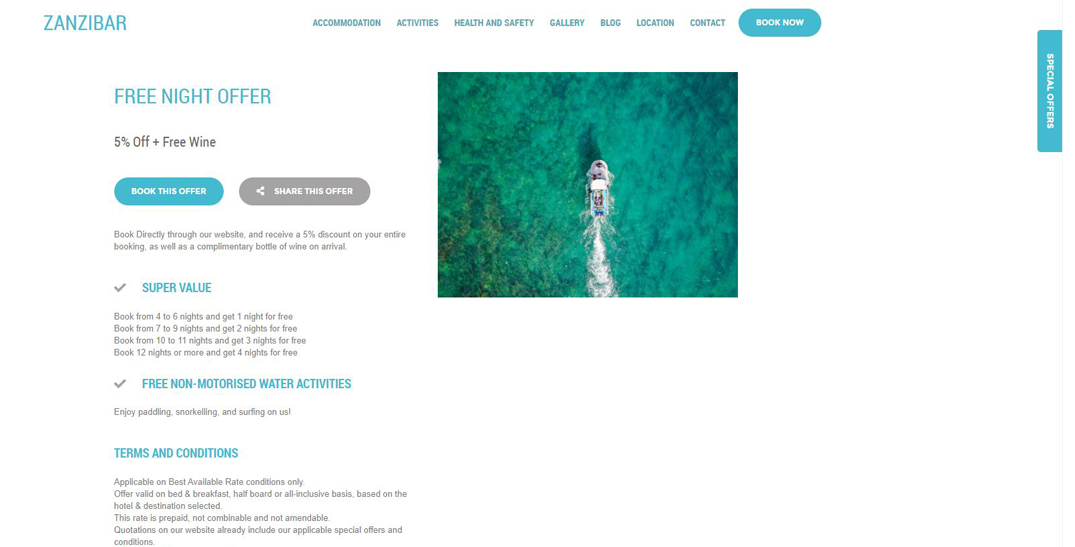
Set as Live
Step 11: When you're ready to publish, click Go Live > Your offer will now be visible on our website.
Note: If this is your first offer, a "Special Offers" page will automatically be added to your website's menu. You can edit the name of this menu item in the menu builder.

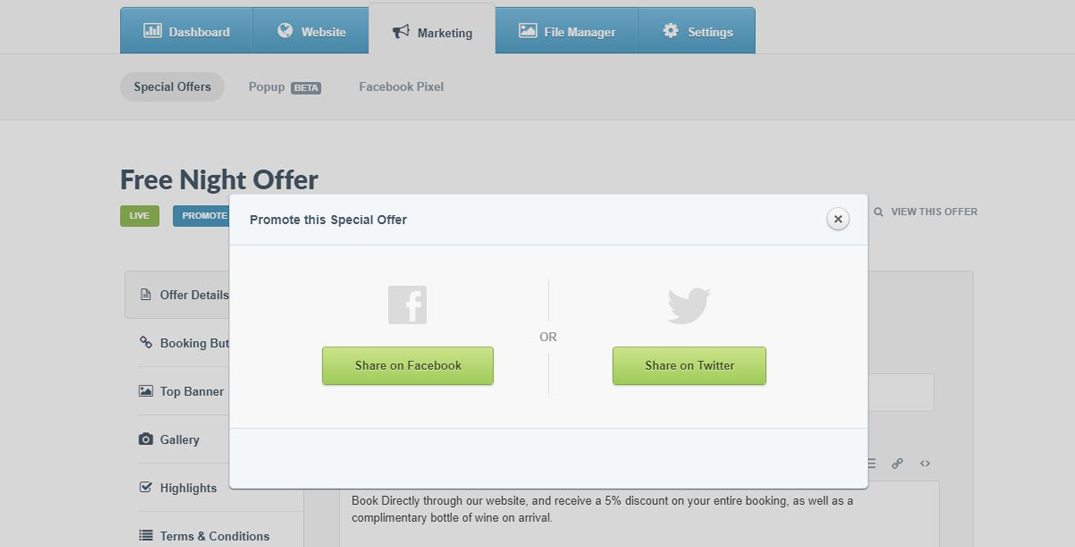
Optional: Once you've completed Step 10 a Popup to share your offer on Facebook and Twitter will appear. To share an offer more than once or after you've dismissed the Popup; you can click the blue Promote button
Preview of Special Offer Drawer:
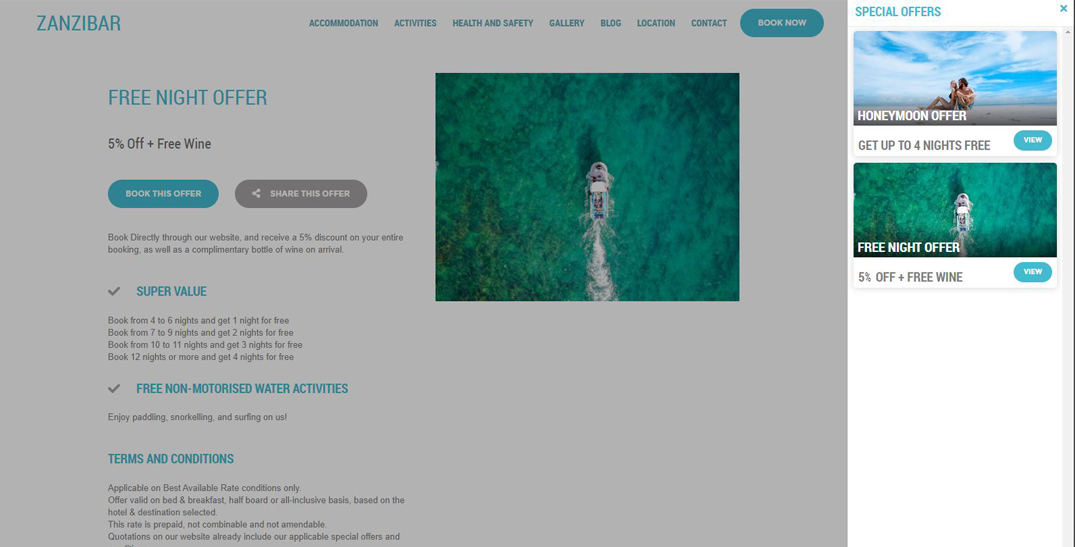
Note: Whenever you have an active offer running, your Drawer will be visible at all times.